Quick Start Guide to the Global Deployments
The Global Deployments page is the central workspace for managing all gateways and endpoints connected to your Zenconsole organization. From this page, you can deploy new gateways and endpoints, monitor their operational status, organize your deployments, and access deployment-specific management pages from a single location.
Whether you are managing a small deployment or a globally distributed environment, the Global Deployments page provides a unified view of your infrastructure, making it easier to monitor deployments and manage devices across your organization.

Figure 1. Global Deployments Dashboard
The Global Deployments page is organized into several areas that help you quickly locate, monitor, and manage your connected gateways and endpoints.
The navigation panel on the left organizes your infrastructure into two primary sections: Gateways & Endpoints and Devices on Gateways.
Gateways & Endpoints
The Gateways & Endpoints section provides a consolidated view of every gateway and endpoint registered to your organization.
From this view, you can switch between the All, Gateways, and Endpoints tabs to focus on a specific deployment type. Each deployment displays information such as its platform, engine version, deployment location, Zero Trust Network membership, connected devices, and operational status, allowing you to quickly verify the health of your environment.
The toolbar at the top of the page includes search, download, refresh, and Global Actions controls, making it easy to locate deployments, export deployment information, and perform common management tasks.
The Add Gateway and Add Endpoint buttons provide quick access to the deployment workflows for onboarding additional gateways and endpoints into your organization.
On the right side of the page, the deployment summary provides a high-level overview of your environment, including a geographic deployment map together with statistics showing the total number of deployments, online gateways, and online endpoints across your organization.
Adding Additional Gateways or Endpoints
As your environment grows, you can add additional gateways or endpoints directly from the Global Deployments section.

Figure 2. Adding Additional Gateways or Endpoints
Use the Add Gateway or Add Endpoint buttons located at the top of the page to start a new deployment.

Figure 3. Add New Gateway to Your Deployment
After selecting the preferred deployment type:
- Follow the same onboarding and installation steps described Quick Installation Guide.
- Choose the appropriate platform for your environment.
- Select the preferred deployment or installation method.
- Complete the installation and registration process.
Once completed, the new deployment will automatically appear in the Global Deployments section for centralized management and monitoring.
Devices on Gateways
The Devices on Gateways section organizes discovered devices according to the gateway that detected them.
Selecting a gateway from this section opens its dedicated management workspace, where you can monitor both the gateway itself and the devices communicating through it. This navigation structure makes it easy to move between deployment-level management and device-level visibility without leaving the Global Deployments page.
Selecting a gateway from the Devices on Gateways section opens the gateway management view.
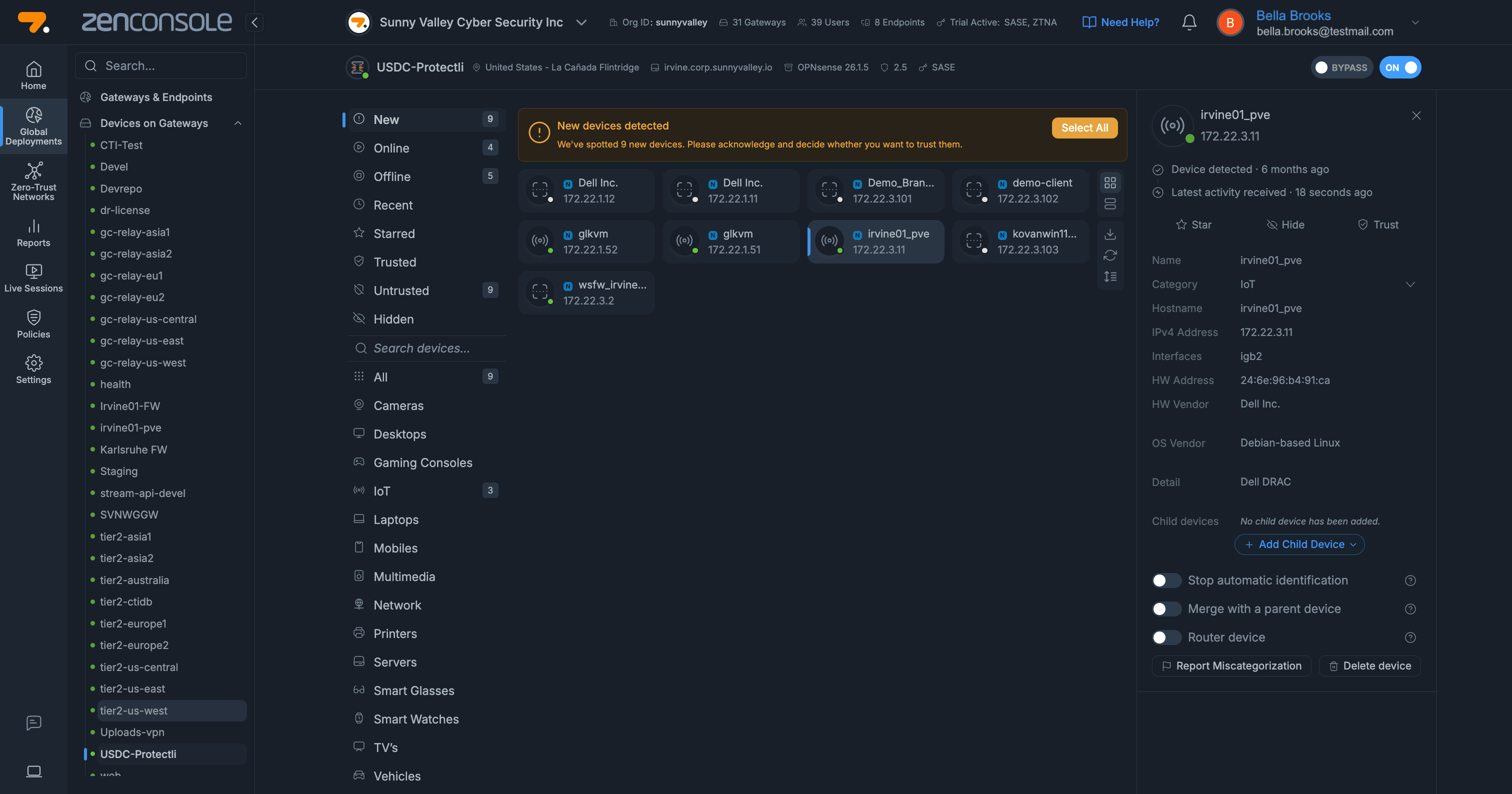
Figure 4. Devices Page on Zenarmor
This page provides detailed information about the selected gateway, allowing you to monitor its operational health and connected services.
The header displays general deployment information, including the gateway name, deployment location, platform, software version, and Zero Trust Network status.
Below the summary, several widgets provide real-time visibility into gateway activity, including traffic throughput, detected threats, top applications, top hosts, service status, and other operational metrics. These widgets help administrators quickly assess gateway health and identify potential issues without navigating to other sections of Zenconsole.
When you select a gateway from the Devices on Gateways section, Zenconsole displays the devices currently discovered behind that gateway.
From this page, you can review devices based on their operational state, including New, Online, Offline, Trusted, Untrusted, and Hidden devices.
Additional filters and search capabilities allow you to quickly locate specific devices or browse devices by category, such as desktops, laptops, servers, printers, IoT devices, and other endpoint types.
This view is particularly useful for verifying newly discovered assets, monitoring endpoint activity, and confirming that devices are successfully communicating through the selected gateway before applying security policies or trust decisions.
Video Walkthrough
For a guided overview of deploying and managing gateways and endpoints from the Global Deployments page, watch the following video:
In this video, you will learn how to:
- Deploy gateways and endpoints from Zenconsole.
- Manage deployments using the Global Deployments page.
- Register endpoints using an Organization ID.
- Monitor gateways and connected devices from a centralized interface.
- Scale deployments across multiple operating systems using supported deployment methods.