Zenconsole Registration of Endpoints
After installing the Zenarmor® endpoint application on an endpoint device, such as Windows, macOS, Linux, or Docker, you must register the endpoint to your organization on Zenconsole to enable centralized cloud management capabilities.
Before starting endpoint registration, ensure that your organization and identity and access management configuration are already completed on Zenconsole.
Organization features are available only on SSE and higher subscriptions.
You can register your Zenarmor endpoint to your organization on the Zenconsole Cloud Management Portal by following the steps below:
-
Launch Zenarmor endpoint application on your computer.
-
Enter your Organization ID, such as
sunnyvalley, to sign into your organization.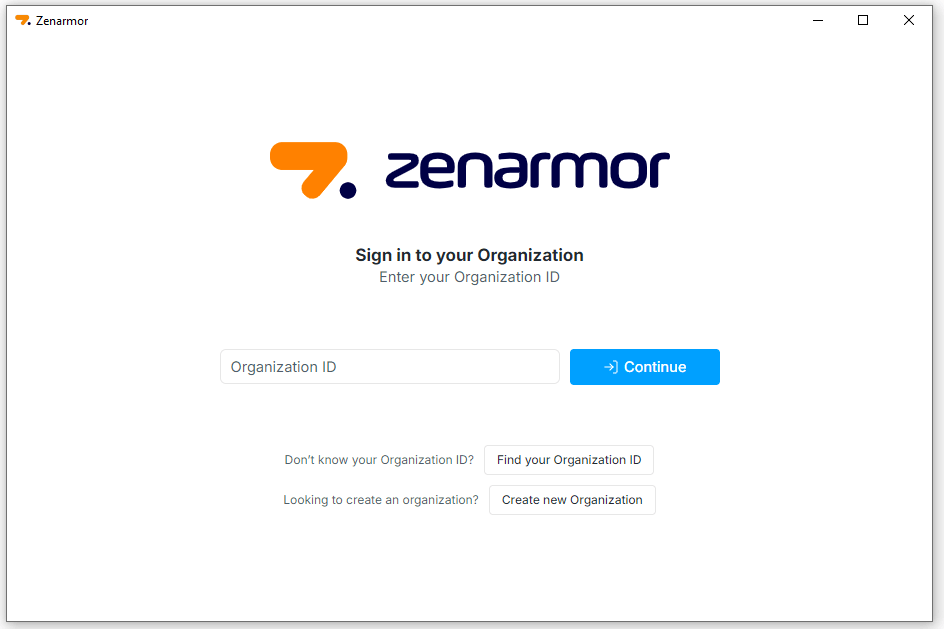
Figure 1. Signing-in Organization
-
Click Continue. You will be redirected to your organization's sign-in page. After successfully signing in, you will be redirected back to the app.
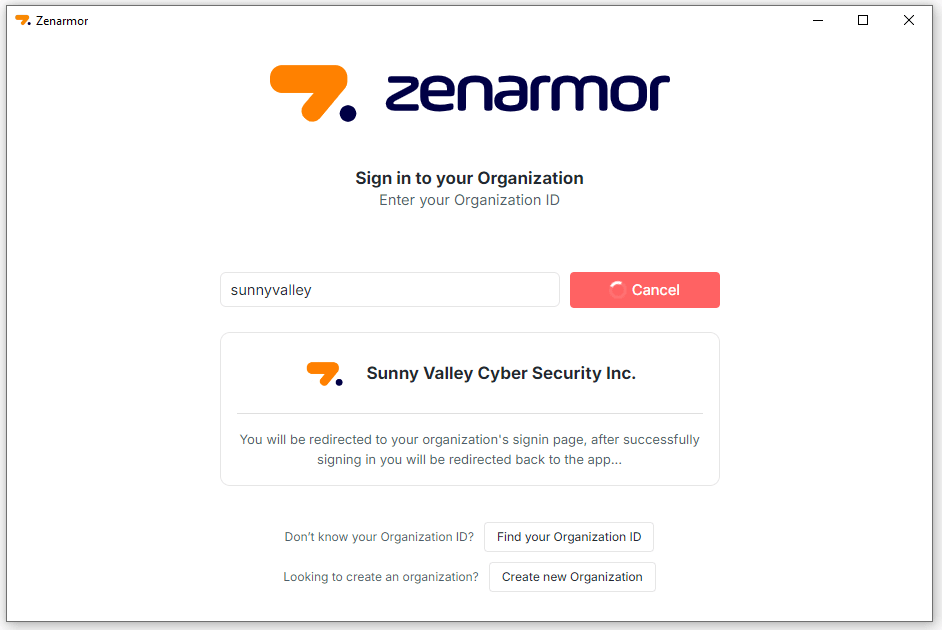
Figure 2. Redirecting Organization Sign-in Page on Zenconsole
-
Click Open Zenarmor to launch the application and complete your endpoint activation on Zenconsole.
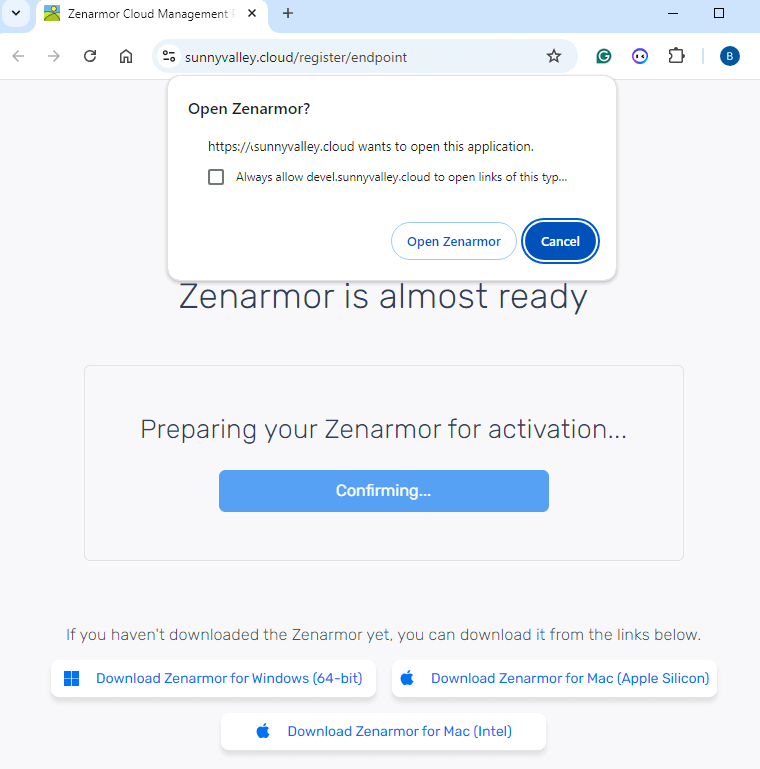
Figure 3. Zenarmor Endpoint Activation
-
You should see that your Zenarmor registration is completed successfully.
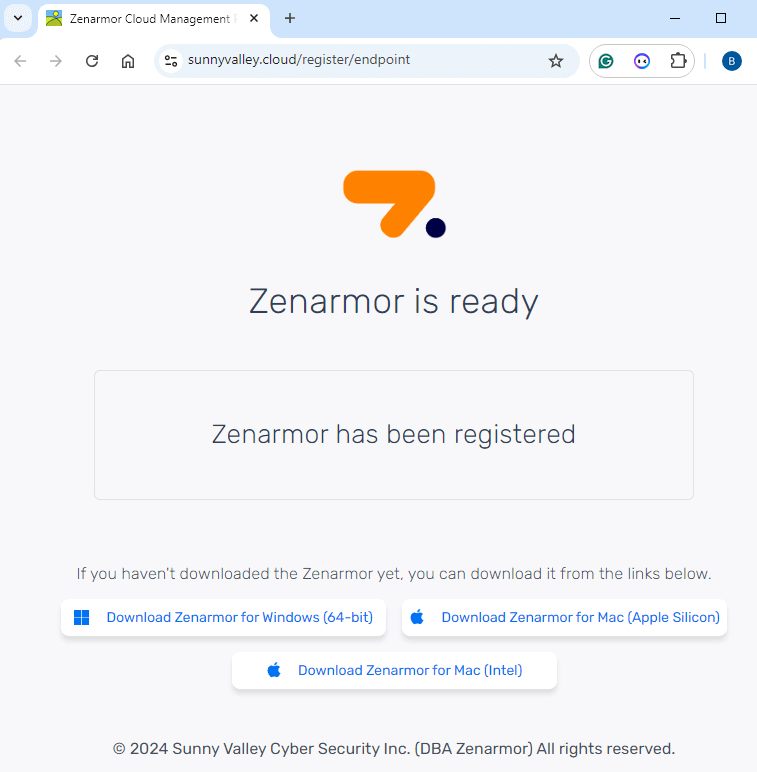
Figure 4. Zenconsole Registration Completed
-
After successful registration, open the Zenarmor endpoint application and verify that the Zenarmor Engine and Cloud Agent are running and connected.

Figure 5. Zenarmor Endpoint Application After Successful Registration