Adding an Ubuntu Gateway
Expanding your organization's network is simple with Zenarmor’s Global Deployments feature. You can easily add new gateways directly from the dashboard, ensuring centralized management and full network protection across branch offices, virtual environments, and cloud infrastructures.
Zenarmor provides flexible installation options for adding gateways, including one-time and reusable installation scripts, depending on your deployment needs.
Before installing Zenarmor, ensure that your system meets the minimum hardware and system requirements for optimal performance. See Hardware Requirements for more information.
Installation Options
Zenarmor provides flexible installation options when adding a new gateway. Depending on your deployment needs, you can use either a one-time installation script or a reusable installation script.
The one-time script is designed for quick, single-use installations, while the reusable script allows you to deploy multiple gateways within a defined time period.
To enable Zenarmor protection, your gateway must be registered in Zenconsole.
Before starting the registration process, ensure that:
- An organization has already been created
- Identity and access management (IAM) configuration is completed
Organization features and endpoint support are only available on SSE and higher subscriptions.
Installation via One-Time Script
The one-time installation script is automatically generated when you open the Add Gateway panel. It is tied to your session and remains valid for a limited time.
By following the steps below, you can quickly add a new gateway to your organization.
-
Open your browser and navigate to Zenconsole.
-
Enter your username and password.
-
Once logged in, the left-hand sidebar will display the navigation menu.
-
Click Global Deployments on the left-hand sidebar.
-
Click + Add Gateway on the Global Deployments page.

Figure 1. Adding a Gateway
-
After clicking + Add Gateway, the Add a Gateway to Your Deployment panel opens.
In this panel:
- Select Ubuntu as the target platform.
- Make sure the One-Time Install Script option is selected.
- Select the appropriate License type (e.g., SASE or ZTNA), if multiple license options are available for your organization
- The script includes a countdown timer indicating how long it remains valid.
- You can invalidate the script at any time using the Invalidate button
noteAvailable license options may vary depending on your organization's subscription and remaining license capacity.
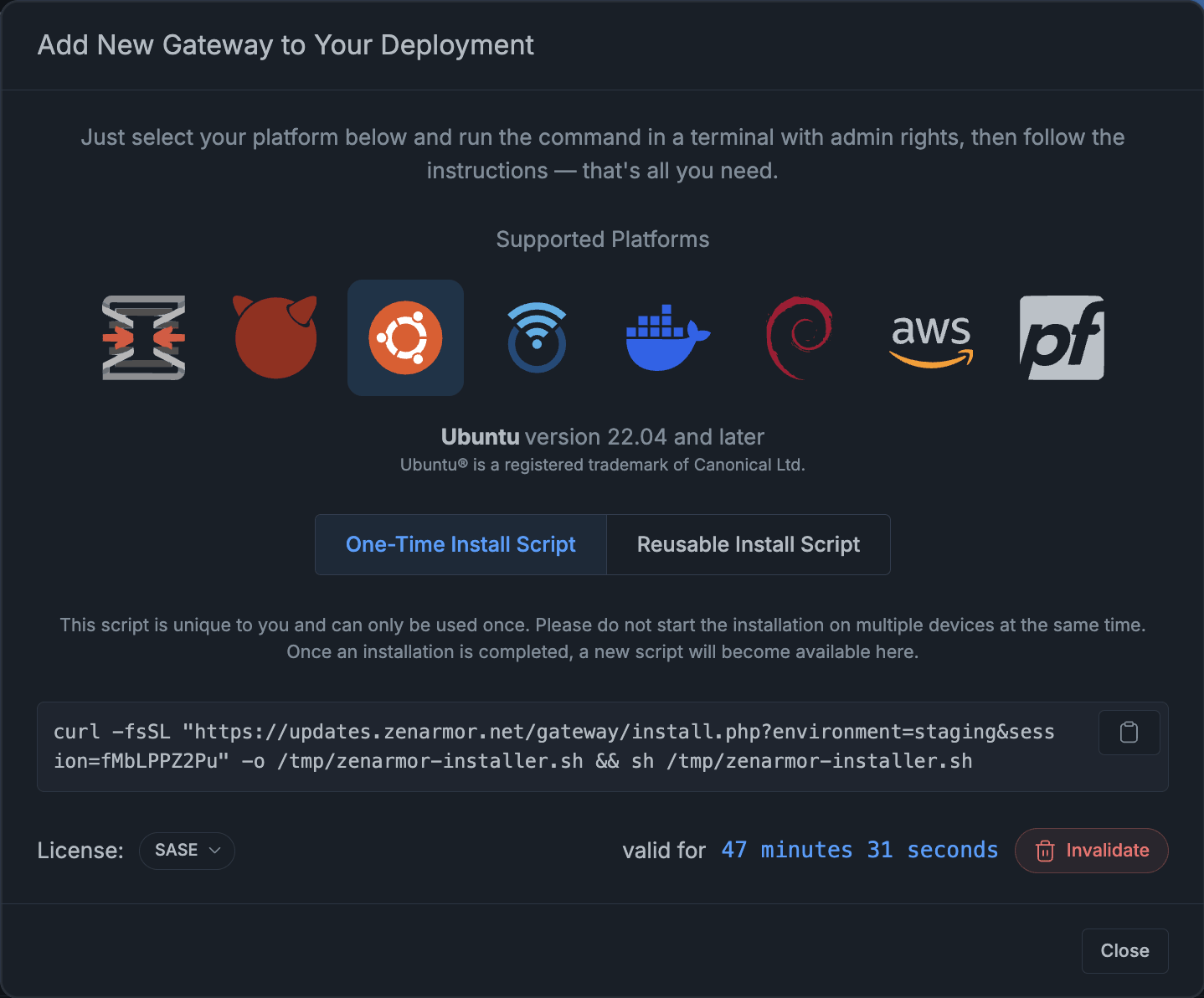
Figure 2. One-time Installation Script
-
Copy the generated command.
-
Access your Ubuntu system terminal and run the command with administrator/root privileges.
-
The installer downloads the required components and completes registration.
 ----------------------------- ✦ SUCCESS ✦ -----------------------------

 Installation finished successfully.

 Registering your firewall gateway to Zenconsole Cloud Management Portal...

 Vendor: ubuntu - Name: Ubuntu 24.04.2 LTS - Release: 24.04.2 - Ver: 24.04

 ----------------------------- ✦ SUCCESS ✦ -----------------------------

 Registration to Zenconsole completed successfully.
 Starting zenarmor-agent service now...
 Zenarmor agent started, Zenconsole communication is online!

 Please return to Zenconsole and complete the gateway provisioning process.
 You should be able see your new gateway popping up under “Pending Gateways”.
 After completing the initial configuration wizard,
 your new gateway will be fully operational.
Within a few minutes, the device appears under Pending Gateways in Zenconsole.
After completing the installation, proceed to the Gateway Provisioning guide to finalize the setup and activate your gateway in Zenconsole.
Installation via Reusable Script
The reusable installation script is designed for environments where multiple gateways need to be deployed.
To use this method, follow the steps below:
-
Open your browser and navigate to Zenconsole.
-
Enter your username and password.
-
Once logged in, the left-hand sidebar will display the navigation menu.
-
Click Global Deployments on the left-hand sidebar.
-
Click + Add Gateway on the Global Deployments page.
Figure 3. Adding a Gateway
-
After clicking + Add Gateway, the Add a Gateway to Your Deployment panel opens.
In this panel:
- Select Ubuntu as the target platform.
- Switch to the Reusable Install Script tab.
- Select the desired expiration period.
- Select the appropriate License type (e.g., SASE or ZTNA), if multiple license options are available for your organization
noteAvailable license options may vary depending on your organization's subscription and remaining license capacity.
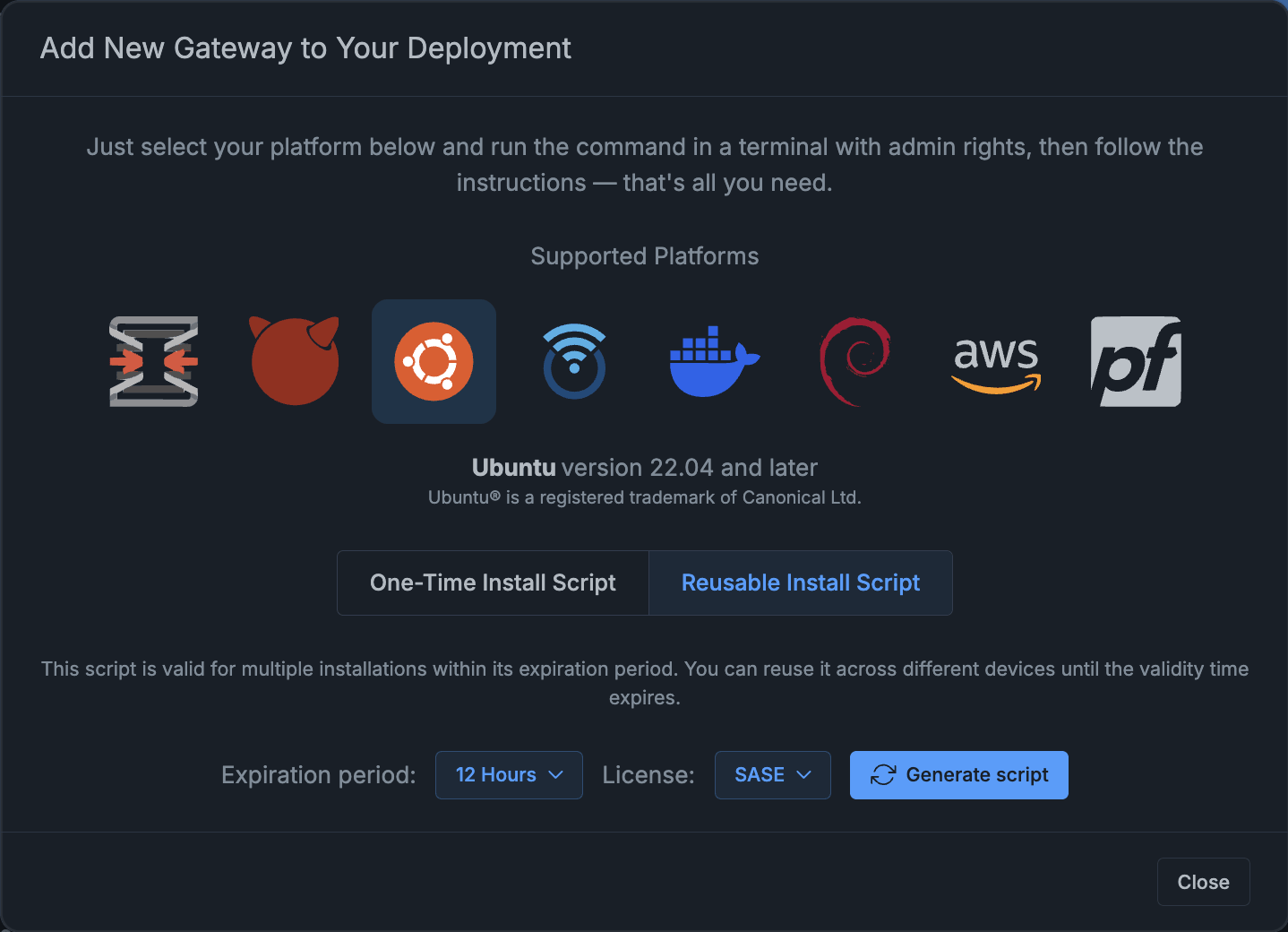
Figure 4. Generating the Reusable Install Script
-
Click Generate Script.
After generating the script:
- The installation command becomes active and ready to use
- The selected license type is applied to all deployments using this script
- A validity timer is displayed, showing how long the script can be used
- You can update the expiration period using the Update expiration period option
- You can invalidate the script at any time using the Invalidate button

Figure 5. Reusable Install Script
-
Access your Ubuntu system terminal and run the command with administrator/root privileges.
-
The installer downloads the required components and completes registration.
  ----------------------------- ✦ SUCCESS ✦ -----------------------------

  Installation finished successfully.

  Registering your firewall gateway to Zenconsole Cloud Management Portal...

  Vendor: ubuntu - Name: Ubuntu 24.04.2 LTS - Release: 24.04.2 - Ver: 24.04

  ----------------------------- ✦ SUCCESS ✦ -----------------------------

  Registration to Zenconsole completed successfully.
  Starting zenarmor-agent service now...
  Zenarmor agent started, Zenconsole communication is online!

  Please return to Zenconsole and complete the gateway provisioning process.
  You should be able see your new gateway popping up under “Pending Gateways”.
  After completing the initial configuration wizard,
  your new gateway will be fully operational.
Within a few minutes, the device appears under Gateways in Zenconsole.
After completing the installation, proceed to the Gateway Provisioning guide to finalize the setup and activate your gateway in Zenconsole.
Reusable scripts can be executed multiple times across different devices until the expiration time is reached or the script is manually invalidated.