Adding a macOS Endpoint
Zenarmor provides device-level protection by installing the Zenarmor application directly on macOS endpoints.
Once installed, macOS endpoints are connected to your organization and centrally managed through the Zenconsole. This allows you to monitor and control web and application traffic regardless of the user’s location.
Zenarmor provides multiple installation options for macOS endpoints. Choose the method that best fits your environment, privileges, and software distribution strategy, and follow the steps to download and install the agent.
The available methods are listed below.
To be able to protect macOS endpoints using Zenarmor, you need to register your endpoints with Zenconsole.
Before starting endpoint registration, you should have an organization set up with identity and access management configuration already completed on Zenconsole.
Organization features and endpoint support are only available on SSE and higher subscriptions.
Method 1: Standalone Installer (GUI)
You can install the Zenarmor endpoint application on your macOS device by following the steps below.
-
Log in to your Zenconsole account.
-
In the left-hand navigation menu, click Global Deployments.
-
Navigate to Gateways & Endpoints in Zenconsole.
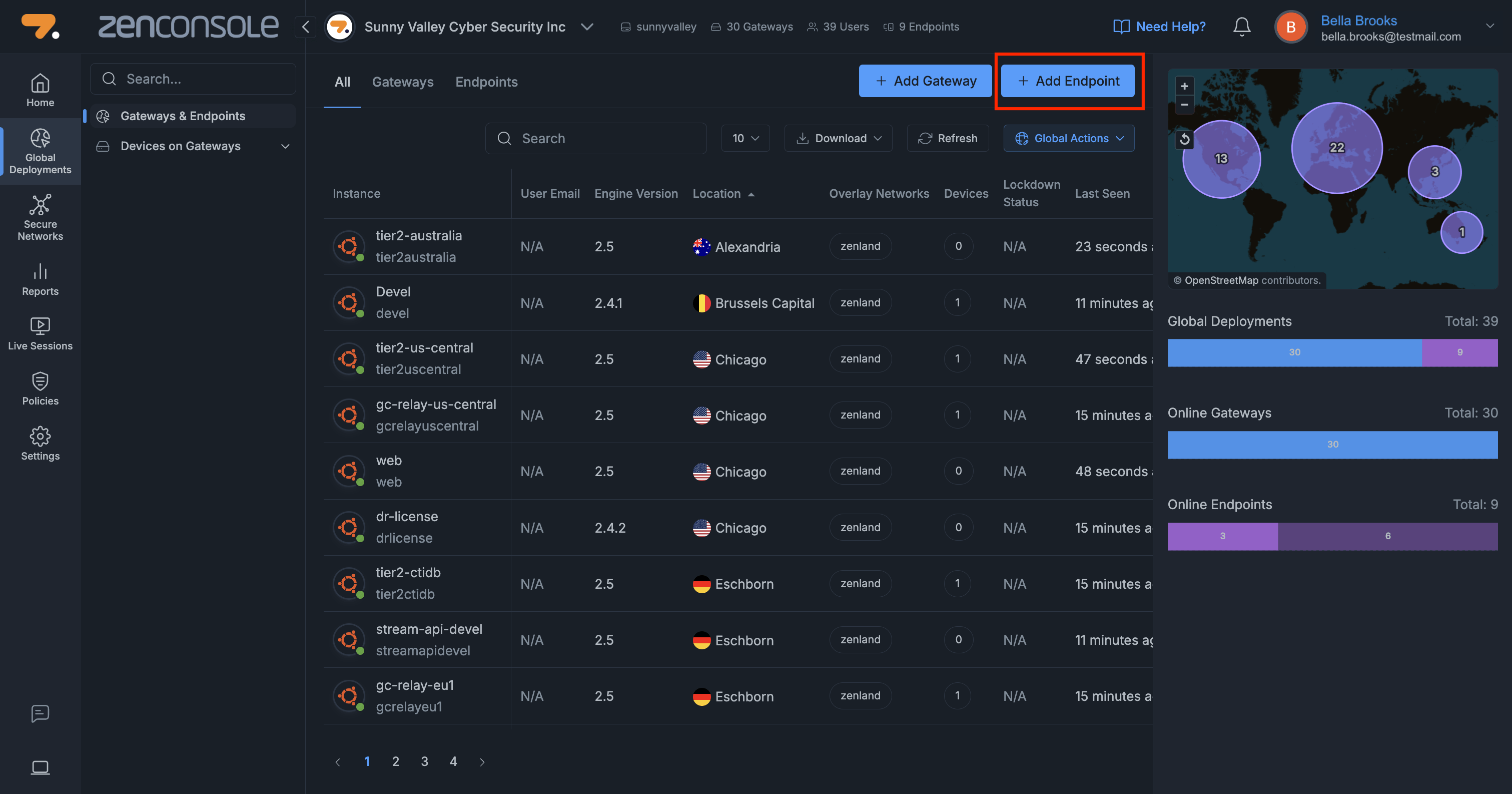
Figure 1. Add Endpoint
-
Click + Add Endpoint and switch to the macOS tab.
-
Under Method 1: Standalone Installer, download the Zenarmor aarch64 installer package.

Figure 2. Download the installer
-
Run the installation file, such as
Zenarmor_2.5.0_aarch64.pkg, by double-clicking on it. This will launch the Zenarmor setup wizard. -
Click Continue to proceed with the setup wizard.
-
Click Install to start the installation. You may need to type the password to allow the new software installation.
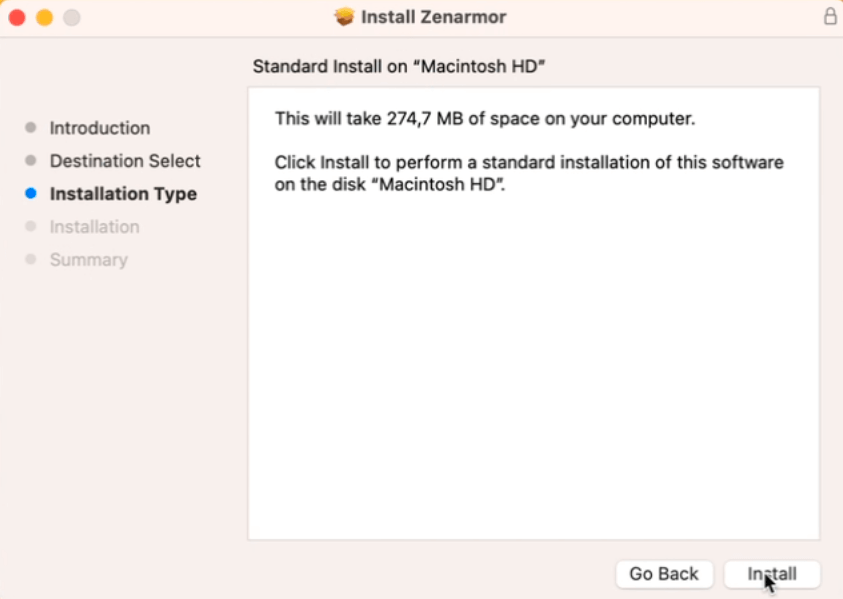
Figure 3. Starting Installation
-
Enter username and password to allow making changes to the System Certificate Trust Settings, which is required for full TLS inspection.
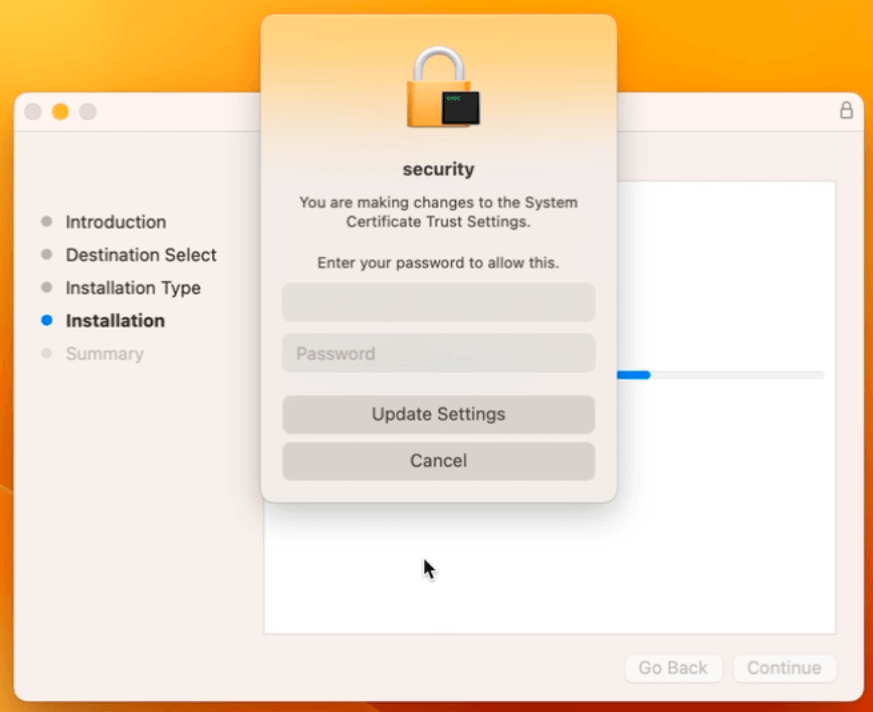
Figure 4. Update System Certificate Trust Settings on macOS
-
Wait while the setup wizard installs Zenarmor.
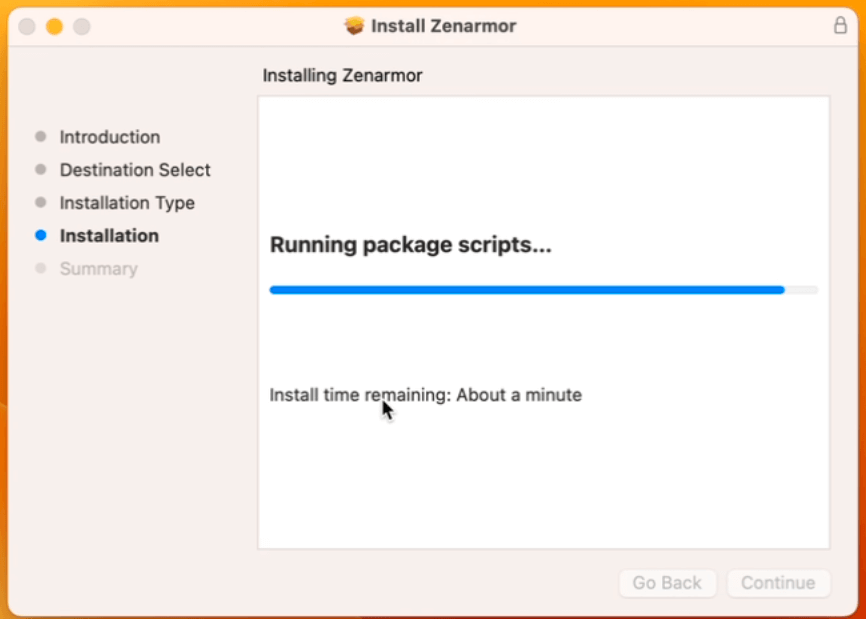
Figure 5. Installing Zenarmor on macOS
-
Click Close to exit the setup wizard and launch Zenarmor.
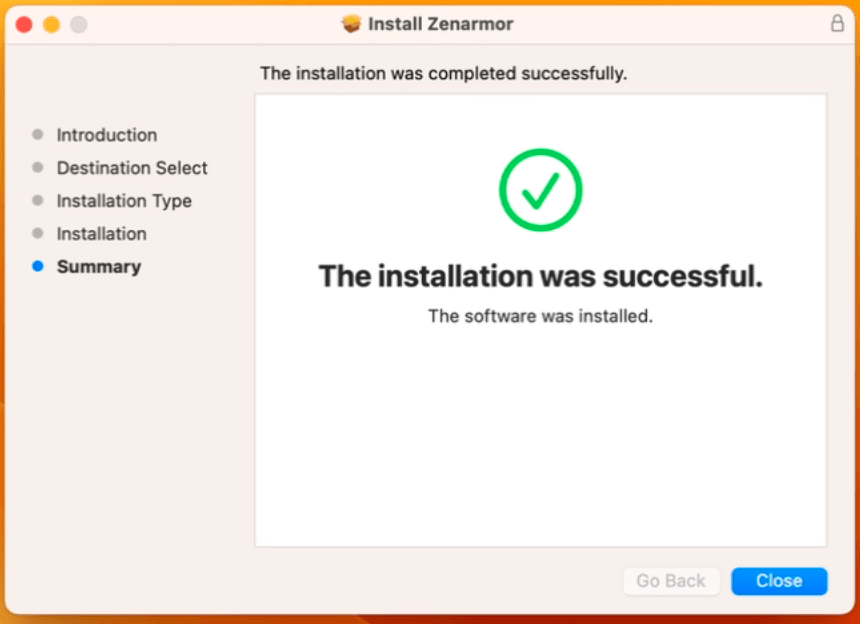
Figure 6. Installation Finished
Now, you must authenticate & register your macOS endpoint to your organization on the Zenconsole.
Method 2: Shell Script
If you prefer an automated installation method, you can install the Zenarmor endpoint application on macOS using a shell script. This method downloads the installer associated with your Organization ID and performs the installation silently from the command line.
Follow the steps below to install Zenarmor on macOS via a shell script:
-
Log in to your Zenconsole account.
-
In the left-hand navigation menu, click Global Deployments.
-
Navigate to Gateways & Endpoints in Zenconsole.
-
Click + Add Endpoint and switch to the macOS tab.
-
Open the Add an Endpoint window in Zenconsole and switch to the macOS tab.
-
Locate Method 2: Shell Script, as shown below, and copy the command provided there.
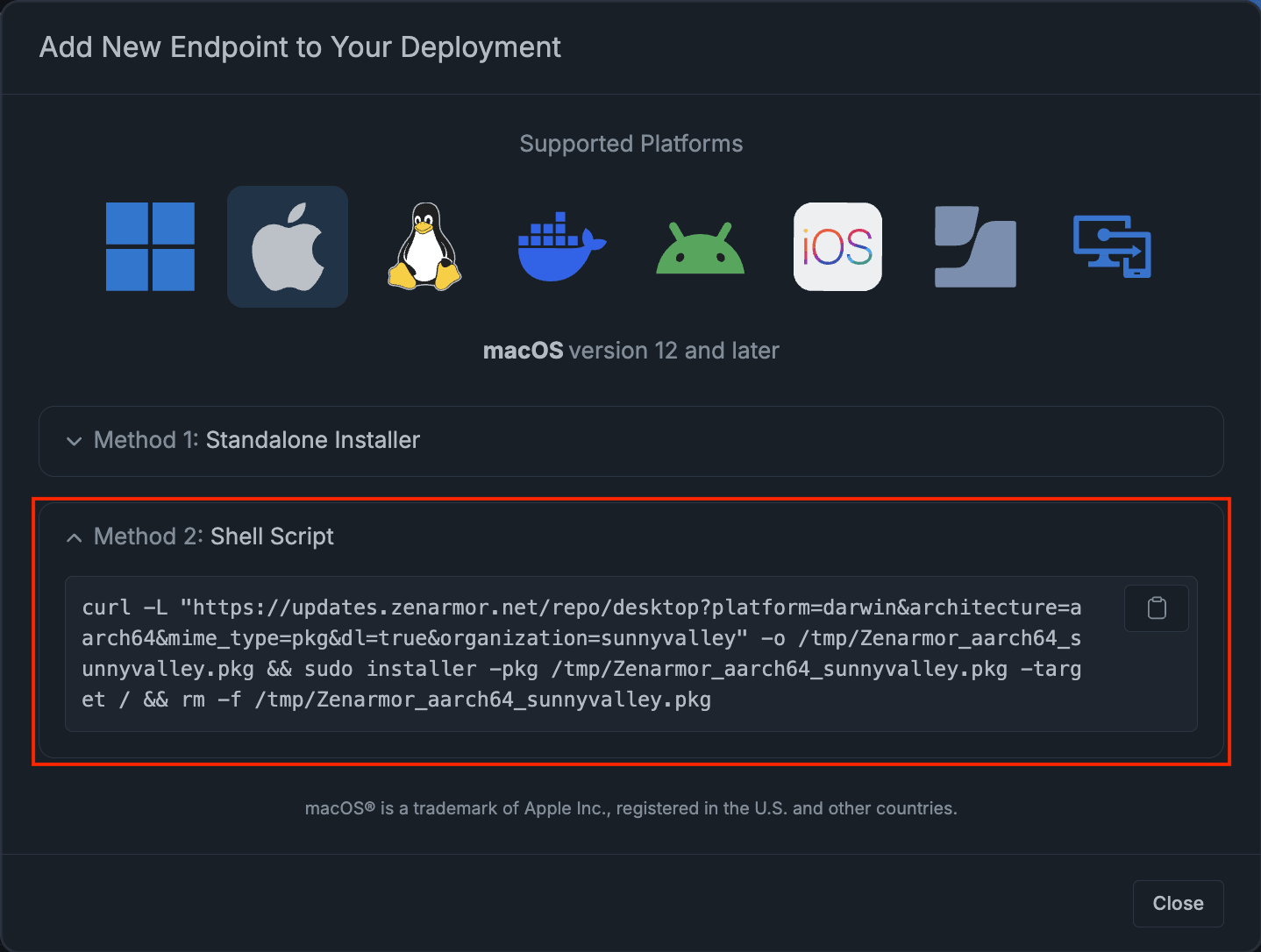
Figure 7. Add an Endpoint to Your Deployment - Shell Script
-
Open the Terminal on your macOS device.
-
Paste the copied command into the Terminal and press Enter to run it.
-
Once the installation is completed, open Launchpad, search for Zenarmor, and launch the application.
Now, you must authenticate & register your macOS endpoint to your organization on the Zenconsole.