Adding a Docker Endpoint
Zenarmor provides support for Docker environments, allowing organizations to deploy the Zenarmor endpoint application directly inside containerized workloads.
With Docker support, containerized applications can securely connect to your organization through Zenarmor SASE and ZTNA capabilities without requiring additional physical or virtual appliances. This enables traffic inspection, policy enforcement, and secure private access for workloads running in containerized environments.
A SASE or ZTNA subscription is required to use Zenarmor in Docker environments.
You can deploy the Zenarmor endpoint application in Docker environments using the provided Docker command.
Follow the steps below to deploy Zenarmor on Docker:
-
Open your browser and navigate to Zenconsole.
-
Enter your username and password.
-
In the left-hand navigation menu, click Global Deployments.
-
Navigate to Gateways & Endpoints in Zenconsole.

Figure 1. Add Endpoint
-
Click + Add Endpoint and switch to the Docker tab.
-
Under Method 1: Shell Script, copy the Docker deployment command provided there.

Figure 2. Add an Endpoint to Your Deployment - Docker
-
Open a Terminal window on the Docker host system.
-
Paste the copied command into the Terminal and press Enter to run it.
-
Wait while Docker downloads the required Zenarmor container image and creates the container. At the end of the installation, an activation code and activation link QR code will be displayed in the Terminal as given below.
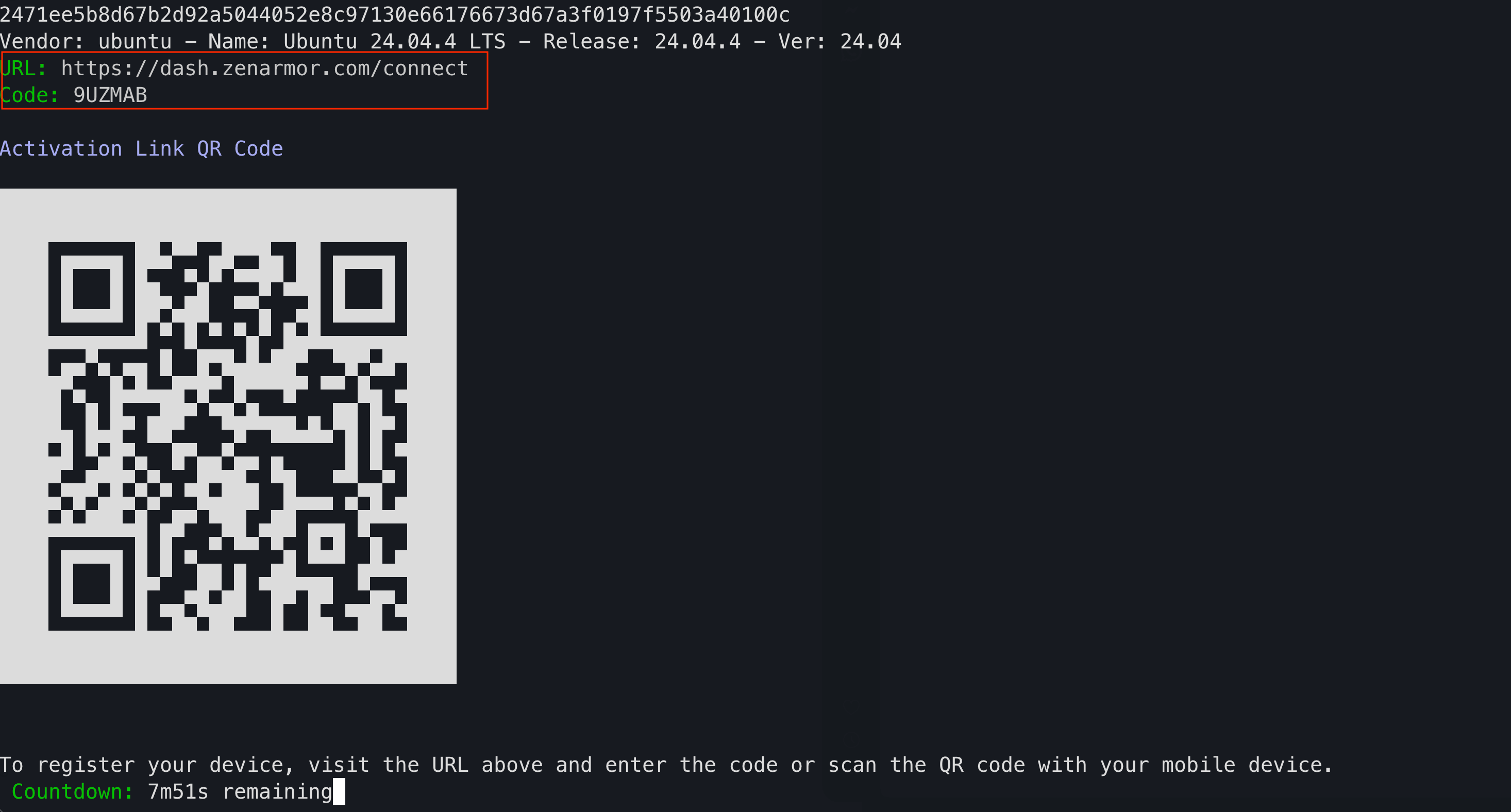
Figure 3. Docker Endpoint Activation Information
-
Open the activation URL
https://dash.zenarmor.com/connectin your browser or scan the QR code using your mobile device.warningBeware that you must complete endpoint registration in 10 minutes.
-
Enter the activation code displayed in the Terminal and click Continue.

Figure 4. Entering the Activation Code
-
Enter your organization name (for example, Production Quality Assurance - prodqa) and continue with the authentication process.

Figure 5. Organization Selection
-
Sign in with your organization account to complete the endpoint registration.

Figure 6. User Authentication
-
Wait while Zenarmor completes the activation process.
-
After successful registration, the terminal displays the "Activation completed" message and starts the Zenarmor endpoint service.

Figure 7. Successful Docker Endpoint Registration
-
Open the Zenarmor endpoint application and verify that the Zenarmor Engine and Cloud Agent are running and connected.
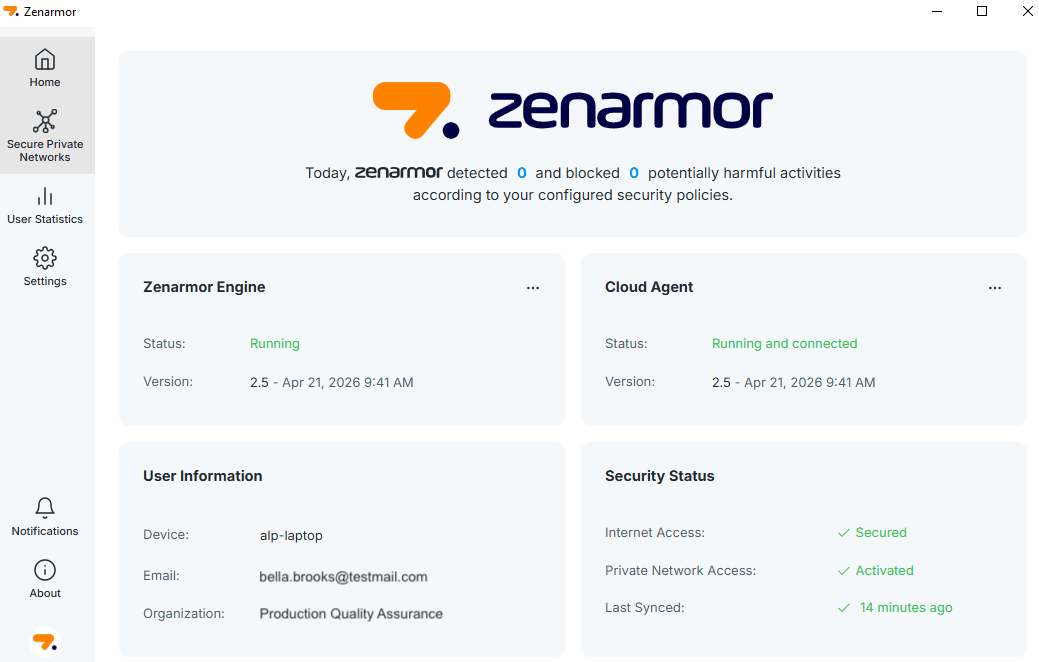
Figure 8. Zenarmor Endpoint Application After Successful Registration
Now, your Docker endpoint is connected to your organization and can be managed through Zenconsole.