Managing CrowdStrike Integration on Zenconsole
Zenconsole allows organizations to manage their CrowdStrike Falcon integration through the CrowdStrike section under Organization Settings.
This integration enables Zenconsole to retrieve Zero Trust Assessment (ZTA) scores from CrowdStrike Falcon, making endpoint security posture information available for use in Zero-Trust Network Policies.
This article explains how to configure and manage the CrowdStrike integration directly from Zenconsole.
For a complete guide covering prerequisites, CrowdStrike Falcon API credential creation, and using ZTA scores in Device Posture Checks, see CrowdStrike ZTA Integration.
Configuring CrowdStrike Integration
You can configure the CrowdStrike integration from the Organization Settings page in Zenconsole.
Before proceeding, ensure that you have the required CrowdStrike Falcon API credentials. For instructions on generating these credentials, see Creating CrowdStrike Falcon API Credentials.
To configure CrowdStrike integration, follow these steps:
-
Log in to Zenconsole.
-
Navigate to Settings → Organization Settings → CrowdStrike.

Figure 1. Organization Settings - CrowdStrike
-
Configure the following fields:
- Customer / Client ID: Enter the Client ID generated in CrowdStrike Falcon.
- API Key: Enter the corresponding Client Secret.
- CrowdStrike Cloud Region: Select the cloud region associated with your CrowdStrike Falcon account.
-
Click Save to configure the integration.
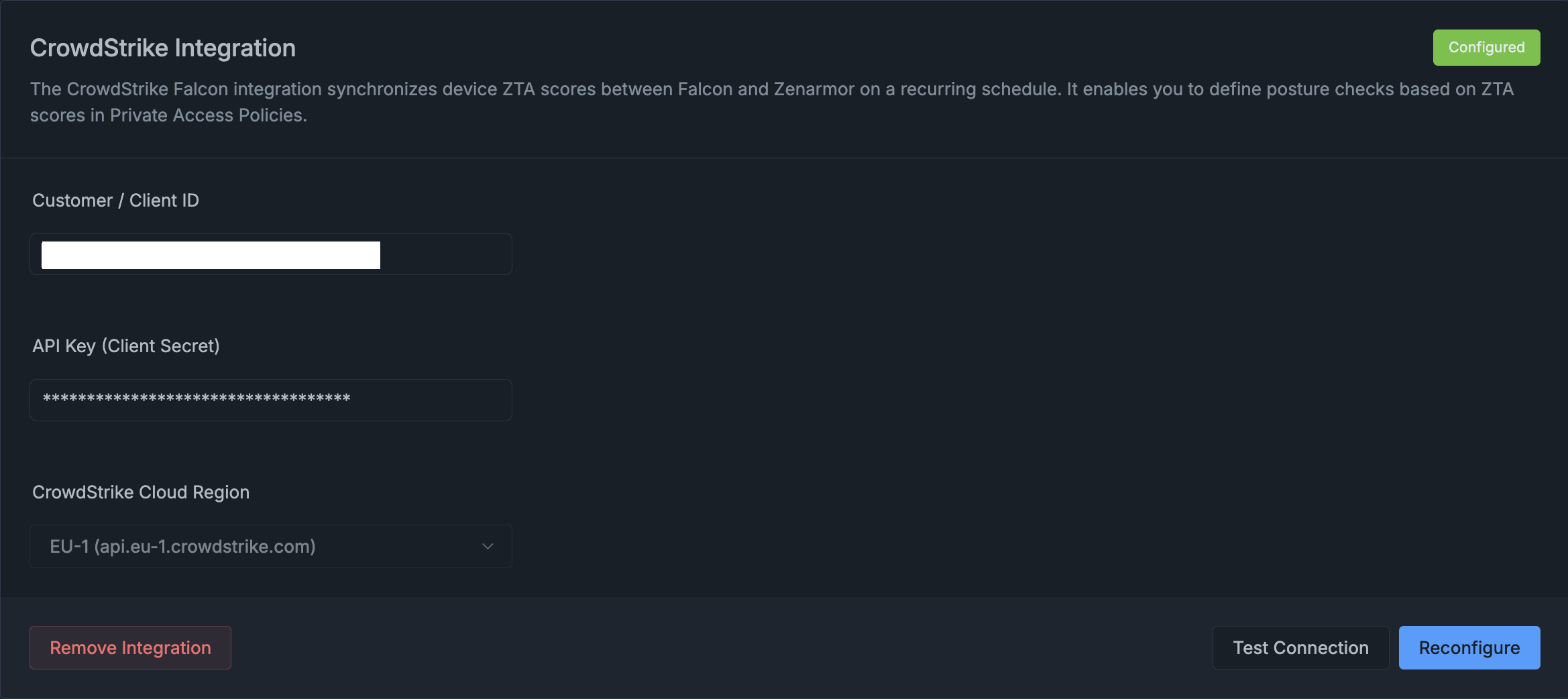
Figure 2. CrowdStrike Integration
Once the configuration is saved, Zenconsole begins synchronizing endpoint ZTA scores from CrowdStrike Falcon at regular intervals.
Checking the Integration Status
The integration status is displayed at the top-right of the CrowdStrike settings panel in Zenconsole. The following statuses are available:
- Configured: Indicates that the CrowdStrike integration has been configured.
- Not Configured: Indicates that the integration has not been configured or has been removed.
Managing CrowdStrike Integration
Once CrowdStrike integration is configured, Zenconsole provides several actions to manage the connection.
Testing the CrowdStrike Connection
The Test Connection action allows you to verify connectivity between Zenconsole and CrowdStrike Falcon using the configured API credentials.
To test the connection, follow these steps:
- Navigate to Settings → Organization Settings → CrowdStrike.
- Click Test Connection.
- Review the connection test result.
If the connection fails, verify that the API credentials and cloud region are correct and that the required API permissions have been assigned.
Reconfiguring CrowdStrike Integration
You can update an existing integration when API credentials or other configuration details need to be changed.
To reconfigure CrowdStrike integration, follow these steps:
- Navigate to Settings → Organization Settings → CrowdStrike.
- Click Reconfigure.
- Update the required fields:
- Customer / Client ID
- API Key
- CrowdStrike Cloud Region
- Click Save to apply the changes.
Removing CrowdStrike Integration
You can remove an existing CrowdStrike integration when it is no longer needed.
To remove the integration, follow these steps:
- Navigate to Settings → Organization Settings → CrowdStrike.
- Click Remove Integration.
- Confirm the removal if prompted.
Once removed, Zenconsole stops synchronizing CrowdStrike ZTA scores.
Removing the integration may affect Zero-Trust Network Policies that rely on CrowdStrike ZTA scores. Review the relevant policies before disconnecting the integration.