CrowdStrike ZTA Integration
Zenarmor integrates with CrowdStrike Falcon to enable ZTA (Zero Trust Assessment)-based device posture validation in ZTNA environments.
This guide explains how to configure the integration, synchronize ZTA scores, and enforce access policies based on device risk levels.

Figure 1. Device Posture Checks Panel
With this integration, Zenarmor retrieves device ZTA scores from CrowdStrike Falcon on a recurring basis. These scores reflect the real-time security posture of endpoints, enabling dynamic, risk-based access control.
Administrators can use these scores in Zero-Trust Network Policies to enforce access based on device risk, ensuring that only devices meeting defined security requirements are allowed to connect.
How ZTA-Based Access Control Works
Zenarmor enables ZTA-based access control through its Device Posture Checks feature, allowing administrators to enforce access decisions based on device risk levels.
When a device attempts to access a protected resource through Zenarmor:
- Zenarmor retrieves the latest ZTA score from CrowdStrike Falcon
- The score is evaluated against the posture conditions defined in the Zero-Trust Network Policy
- Based on this evaluation, Zenarmor allows or blocks access according to the device’s risk level
For this process to function correctly, endpoints must be recognized by both platforms. Devices require the CrowdStrike Falcon agent to generate ZTA scores and the Zenarmor agent to enforce access policies, along with an active CrowdStrike integration in Zenconsole.
Without these components, devices cannot be evaluated properly. Endpoints without the Falcon agent do not produce ZTA scores, and when the integration is inactive, ZTA data is unavailable even if device identities remain. As a result, such devices will not match posture-based access policies.
This process is enforced in real time within Zenarmor’s ZTNA framework, ensuring that access decisions are continuously based on each device's current security posture.
As a result, Zenarmor enables dynamic, risk-aware access control, fully aligned with Zero Trust principles, where no device is trusted by default.
Prerequisites
Before configuring the CrowdStrike Falcon integration in Zenarmor, ensure that the following requirements are met:
- Endpoints are running the CrowdStrike Falcon agent to generate ZTA (Zero Trust Assessment) scores
- The Zenarmor agent is installed on endpoints to enable Device Posture Checks within ZTNA
- You have a CrowdStrike account with permission to create API credentials
- You have access to Zenconsole Organization Settings to configure the integration
Device Posture Checks with CrowdStrike ZTA scores are available in Zenarmor deployments with an active ZTNA or SASE subscription.
Creating CrowdStrike Falcon API Credentials
To integrate Zenarmor with CrowdStrike Falcon, you must create API credentials that allow Zenarmor to retrieve device information and ZTA scores.
To create a CrowdStrike Falcon API client:
-
Log in to your CrowdStrike account
-
Navigate to Support and Resources → API Clients and Keys

Figure 2. API Clients and Keys Menu
-
Click Create API Client
-
Enter a name for the client (for example, Zenarmor Integration)
-
Assign the following permissions:
- Hosts → Read
- Zero Trust Assessment → Read

Figure 3. Selecting Hosts Read Permission for API Clientl
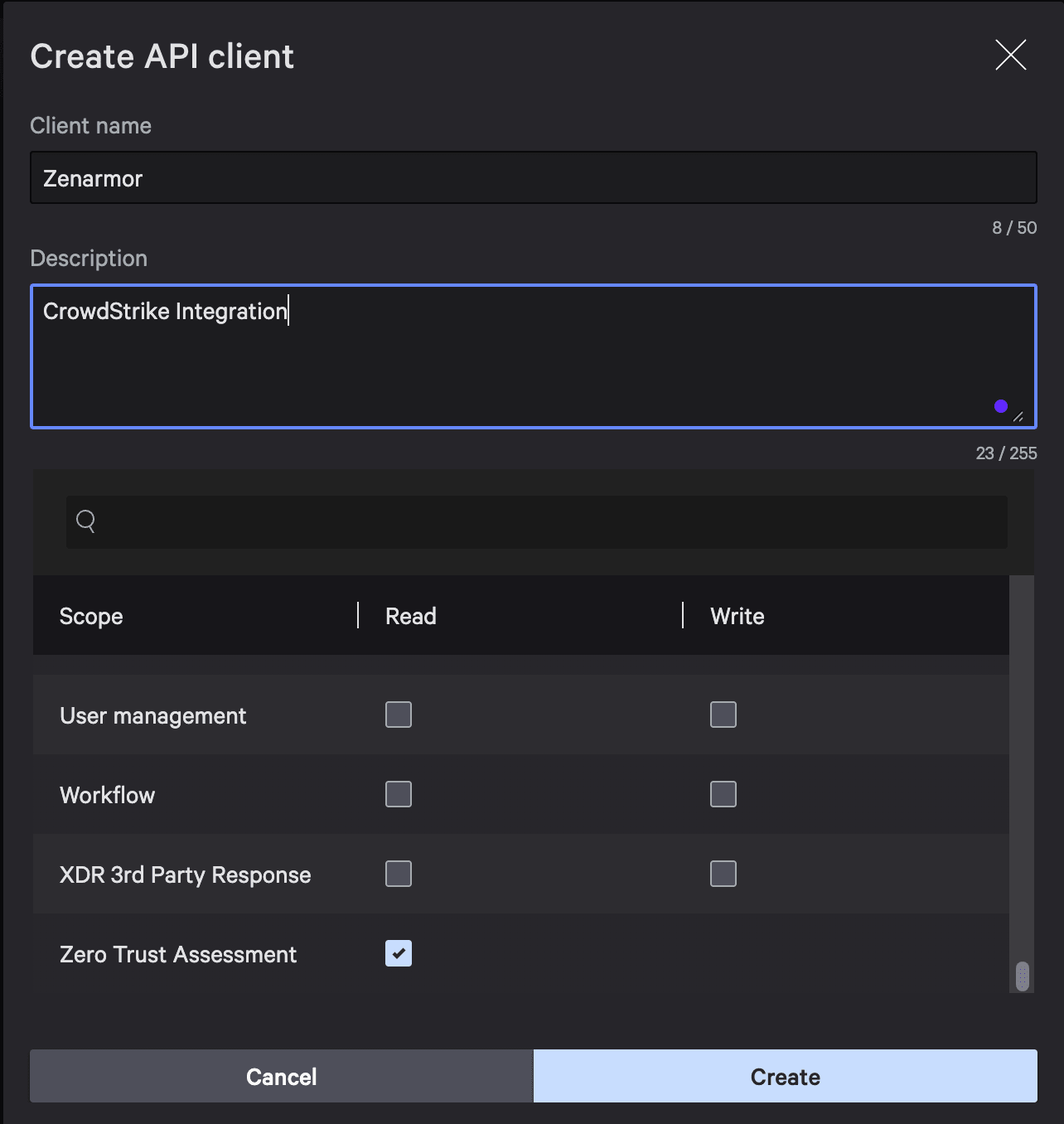
Figure 4. Selecting Zero Trust Assessment Read Permission for API Client
-
Click Create
-
Copy and securely store the following credentials:
- Client ID
- Client Secret
-
Note your Base URL (for example:
https://api.us-2.crowdstrike.com)
These credentials will be used in Zenconsole to configure the CrowdStrike integration and enable synchronization of ZTA scores.
Configuring CrowdStrike Integration in Zenconsole
Before using CrowdStrike ZTA scores in Device Posture Checks, you must configure the integration at the organization level.
To configure CrowdStrike integration:
-
Open your browser and navigate to Zenconsole.
-
Enter your username and password.
-
Once logged in, the left-hand sidebar will display the navigation menu.
-
Click Settings on the left-hand sidebar.
-
Navigate to Organization Settings → CrowdStrike in Zenconsole.

Figure 5. Organization Settings - CrowdStrike
-
Enter your Customer / Client ID.
-
Provide your API Key (Client Secret).
-
Select the appropriate CrowdStrike Cloud Region.
-
Click Save to activate the integration.
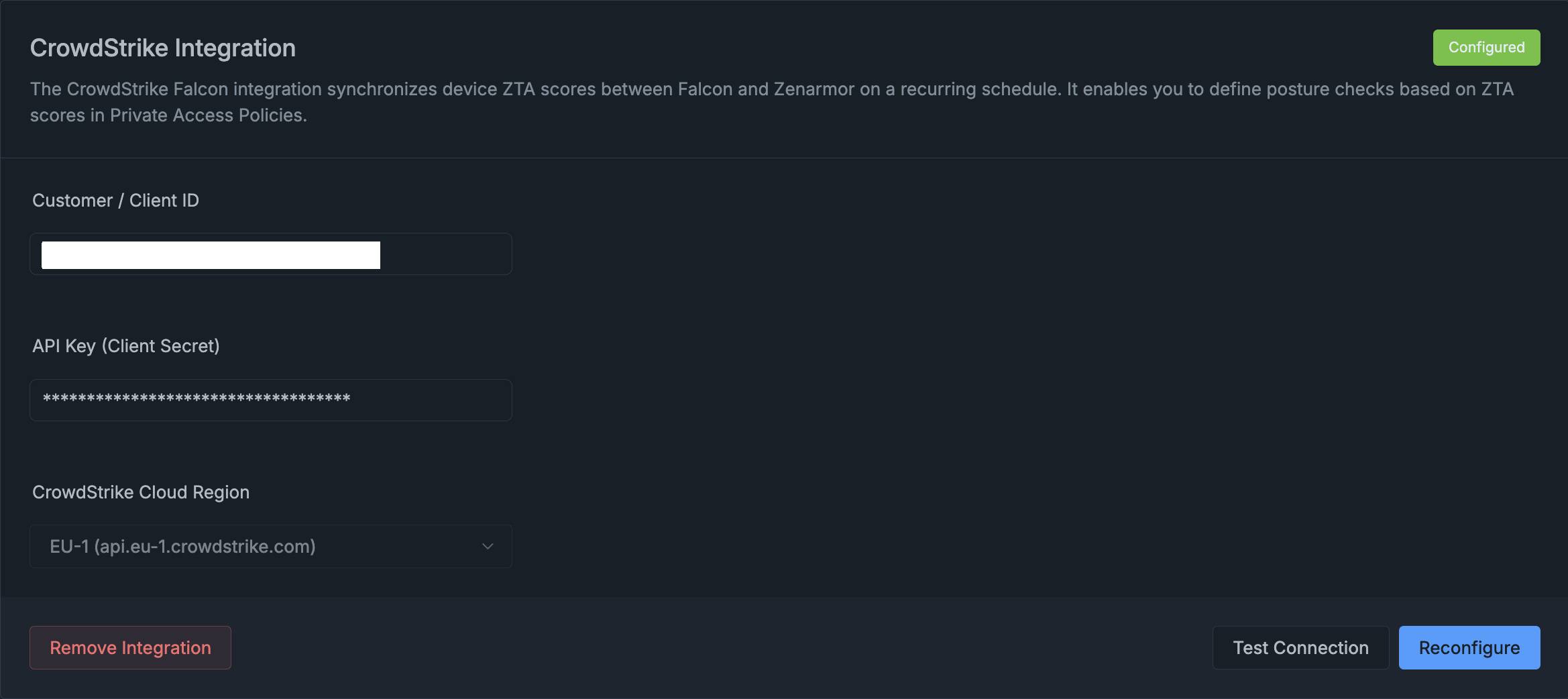
Figure 6. CrowdStrike Integration
Once configured, Zenarmor will begin synchronizing device ZTA scores from CrowdStrike Falcon at regular intervals.
The integration status is displayed at the top-right of the CrowdStrike settings panel in Zenconsole:
- Configured indicates that the integration is active and ZTA data can be synchronized
- Not Configured indicates that the integration is not set up or has been removed, and ZTA-based features will not function
You can verify that the integration is working from the Global Deployments → Gateways & Endpoints page in Zenconsole.
For devices with the CrowdStrike Falcon agent installed and a properly configured CrowdStrike integration, the following details will appear in the instance panel:
- CrowdStrike Falcon ID
- CrowdStrike ZTA Score
The presence of this information confirms that the device is successfully matched with CrowdStrike and that ZTA-based posture data is available for policy enforcement.
Managing CrowdStrike Integration
After configuring the integration, you can manage and validate it using the available actions in the CrowdStrike settings panel in Zenconsole:
- Test Connection: Verifies that the API credentials and connectivity to CrowdStrike Falcon are working correctly
- Reconfigure: Allows you to update the existing integration settings (such as Client ID, API Key, or region)
- Remove Integration: Disables the integration and stops synchronization of ZTA scores
These options help ensure that the integration remains functional and up to date.
Using CrowdStrike ZTA Score in Device Posture Checks
After the integration is enabled, CrowdStrike ZTA scores become available as a posture condition within Zero-Trust Network Policies.
To use ZTA scores in a policy:
-
Open your browser and navigate to Zenconsole.
-
Enter your username and password.
-
Once logged in, the left-hand sidebar will display the navigation menu.
-
Go to Policies → Zero-Trust Network Policies.
-
Create a new rule or edit an existing one.

Figure 7. Zero-Trust Network Policies Page
-
Scroll to the Device Posture Checks section.
-
Locate the CrowdStrike ZTA Score field.
Figure 8. Device Posture Checks Panel
-
Click Set to open the configuration panel and define the required ZTA score threshold. In the dialog, specify the minimum score (for example, ≥ 70 or ≥ 80) based on your security requirements, then apply the selection.

Figure 9. Defining CrowdStrike ZTA Score Threshold
infoZTA scores range from 0 to 100, where higher scores indicate more secure devices.
By defining a minimum ZTA score, you ensure that only devices meeting your security requirements are allowed to access private resources.
CrowdStrike integration must be active before using ZTA Score conditions in Zero-Trust Network Policies.