Threat & Activity Alerts
The Threat & Activity Alerts feature enables administrators to configure automated email notifications that are sent to specified recipients for specific network activities and security threats. By defining custom alert rules based on selected criteria, administrators can monitor critical events and receive timely notifications when those conditions are met.

Figure 1. Threat & Activity Alerts
Modern security environments generate large volumes of network and security data, making it difficult for administrators to monitor every critical event manually. Delayed awareness of suspicious activities, policy violations, malware detections, or abnormal traffic patterns can increase response times and operational risk.
To address this challenge, the Threat & Activity Alerts feature provides proactive, automated monitoring. Once configured, the system continuously analyzes network activity across the Connections, Threats, Blocks, and DNS datasets and automatically triggers alerts for matching events. Notifications are consolidated and delivered according to the selected frequency (e.g., hourly), ensuring efficient and manageable communication.
By delivering targeted alerts directly to administrators via email, the feature helps security teams respond more quickly to critical incidents, improve operational visibility, and reduce the gap between threat detection and response. Configurable alert conditions also enable organizations to focus on the events that are most relevant to their environment and security policies while minimizing unnecessary alert noise.
This feature is available for SSE and higher subscriptions.
To access the Threat & Activity Alerts feature, follow the steps below:
-
Open your browser and navigate to Zenconsole.
-
Enter your username and password.
-
Once logged in, the left-hand sidebar will display the navigation menu.
-
Click Settings on the left-hand sidebar.
-
Navigate to Organization Settings → Threat & Activity Alerts in Zenconsole.

Figure 2. Threat & Activity Alerts Page
The alert management page will be displayed.
Creating an Alert Rule
To receive notifications for specific network activities or security threats, you need to create an alert rule.
Follow the steps below to configure a new alert rule.
-
Log in to your Zenconsole account.
-
Click Settings on the left-hand sidebar.
-
Navigate to Organization Settings → Threat & Activity Alerts in Zenconsole.
-
Click Create Alert Rule to open the Create Alert Rule panel.

Figure 3. Creating a New Alert Rule
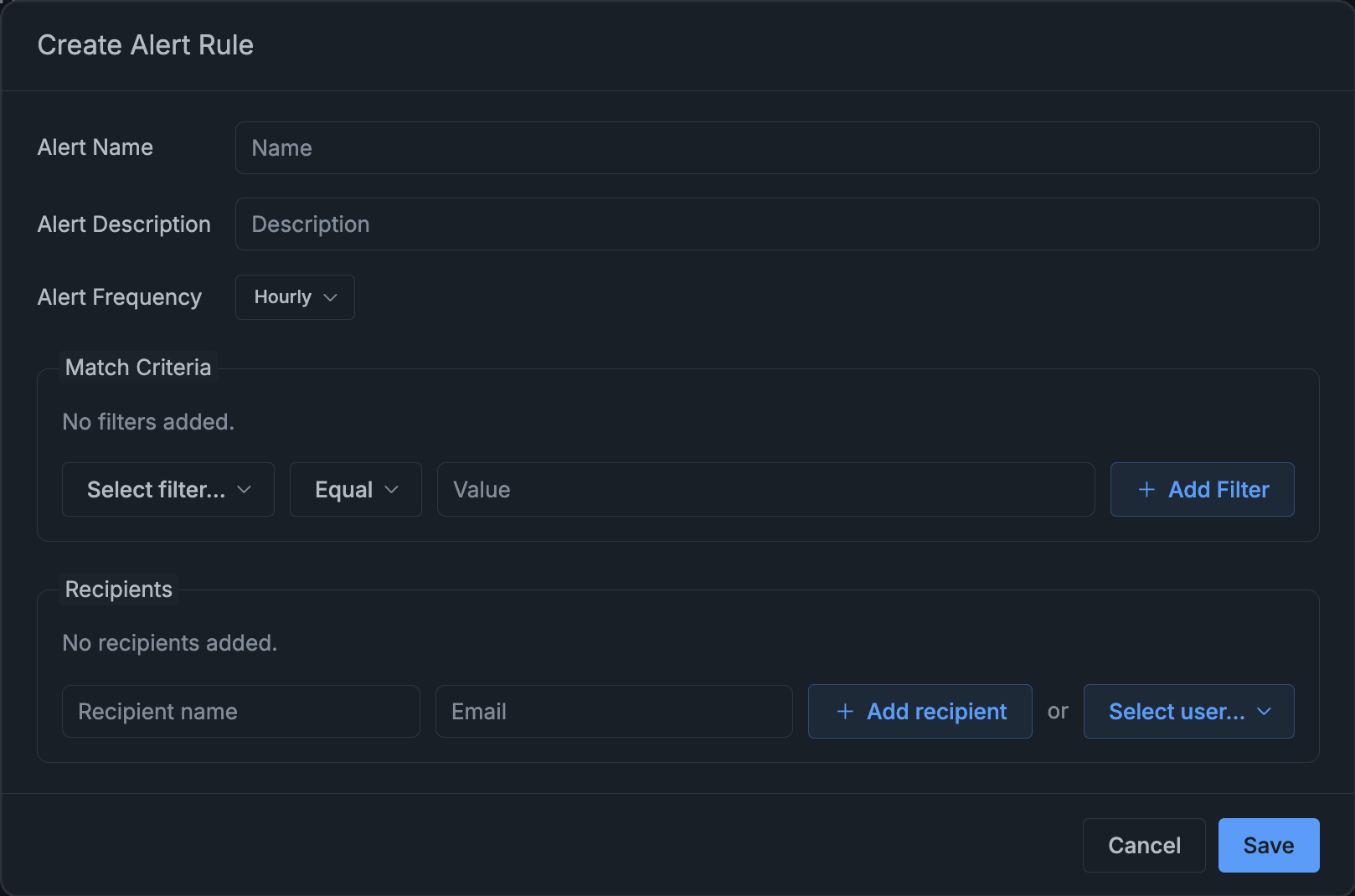
Figure 4. Create Alert Rule Panel
-
Provide the alert details in the configuration panel:
- Alert Name: Enter a unique and descriptive name.
- Alert Description*:* Add additional details to describe the purpose of the alert.
- Alert Frequency: Select how often notifications should be sent (e.g., hourly).

Figure 5. Configuring Alert Details
-
To define in which cases the alert will be triggered:
a. Click Select filter
b. Select a filter from the list (e.g., Application, Security category, Block status)
Figure 6. Selecting a Filter
c. Choose a comparison operator (e.g., Equal, Not Equal, Contains)

Figure 7. Selecting a Comparison Operator
d. Select the desired value

Figure 8. Selecting Value
e. Click Add Filter

Figure 9. Added Filter Criteria
You can add multiple filters to refine the alert conditions.
noteThe available comparison operators and value options may vary depending on the selected filter type.
-
Specify the recipients for alert notifications:
a. Enter the recipient name and email address manually
b. Or click Select User to choose from existing users
c. Click Add Recipient to include them in the list.
d. To remove a recipient, click Remove under the Actions column for the selected recipient.
Figure 10. Adding Recipients
-
Click Save.

Figure 11. Alert Rule List View
The alert rule becomes active immediately. Notifications will be sent when matching events occur.
Managing Threat & Activity Alert Rules
Once alert rules are created, they can be viewed and managed from the Threat & Activity Alerts page.
To manage an alert rule:
-
Locate the alert rule in the list
-
Click the Actions menu (three dots) next to the rule
-
Select one of the following options:
- Edit: Update the alert rule configuration, including criteria, frequency, or recipients.
- Suspend: Temporarily disable the alert rule.
- Reactivate: Re-enable a suspended alert rule. Notifications will resume once the rule is reactivated.
- Delete: Permanently remove the alert rule from the system.

Figure 12. Managing Alert Rule Actions
noteThe available action may change depending on the status of the alert rule. Suspended rules can be reactivated.