Streaming Reporting Data on Zenconsole
Zenarmor allows you to stream reporting data to external systems for centralized reporting, monitoring, and advanced analytics while maintaining local data storage.
Reporting data can be streamed to your organization's central reporting database or integrated with third-party systems such as SIEM, SOAR, XDR, and NDR solutions through Syslog or Elasticsearch.
The Streaming Data page provides the following options:
- Central Reporting Database: Stream reporting data to your organization's central database for consolidated reporting and analytics.
- Syslog: Forward selected reporting data to an external Syslog server.
- External Elasticsearch: Stream reporting data to an external Elasticsearch instance.
To access the Streaming Data page on Zenconsole, follow these steps:
-
Log in to Zenconsole.
-
Navigate to Settings → Gateway Settings from the left-hand navigation menu.
-
Select the gateway you want to configure.
-
Under Reporting & Data, click Streaming Data.
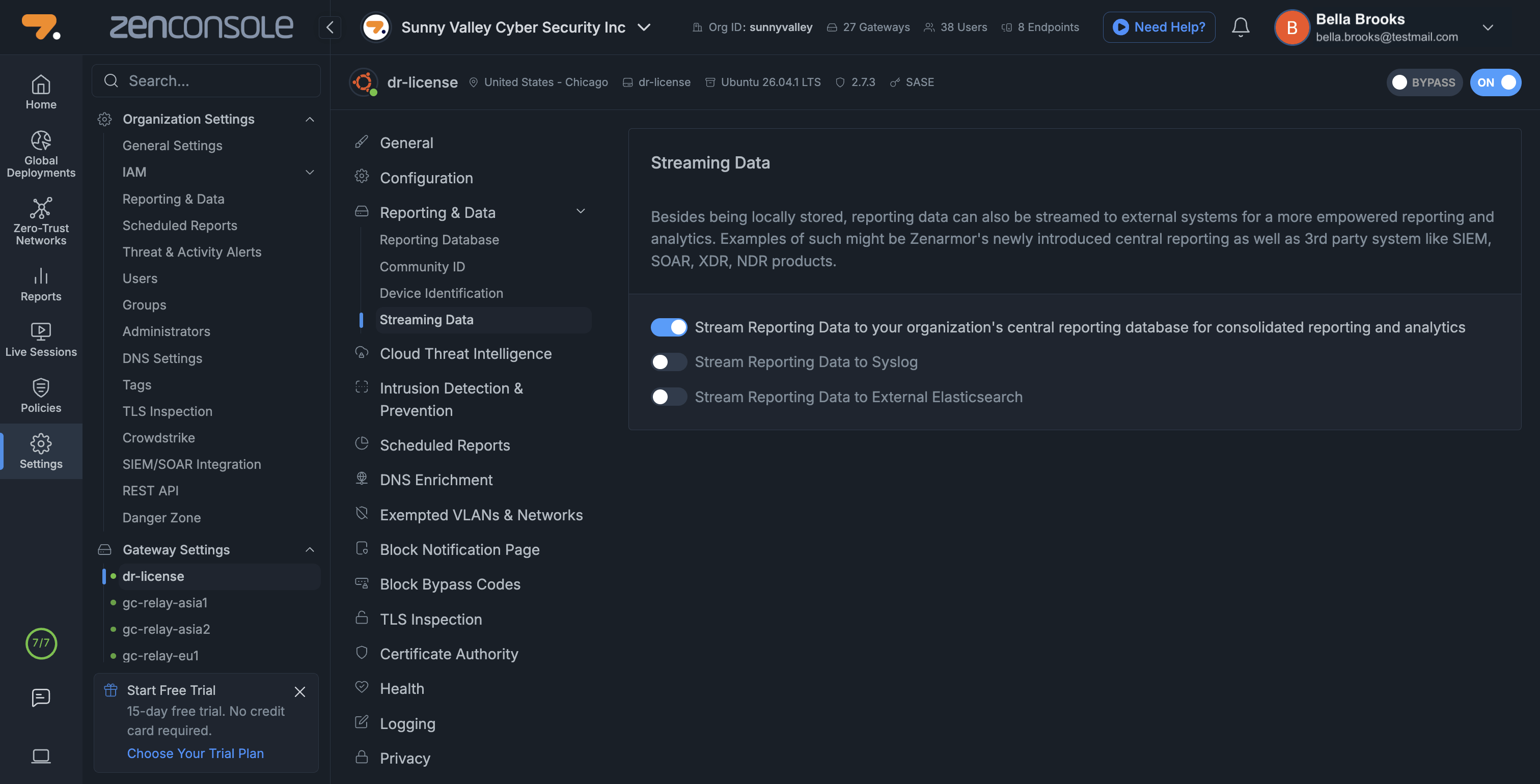
Figure 1. Streaming Data Page
Streaming Reporting Data to Central Database
Zenarmor allows you to stream reporting data to your organization's cloud-hosted central reporting database for consolidated reporting and analytics.
For supported subscriptions, central reporting data streaming is enabled by default. You can disable this feature if you prefer to store reporting data locally.
To enable or disable central reporting data streaming:
- Navigate to the Streaming Data page.
- Enable or disable Stream Reporting Data to your organization's central reporting database for consolidated reporting and analytics using the toggle.
Enabling Streaming Data to Syslog
You can easily start to streaming Zenarmor reporting data to your Syslog server by following the next steps:
-
Go to Streaming Data page on Zenconsole UI.
-
Click Stream Reporting Data to Syslog toggle bar. This will open Stream Reporting Data to Syslog configuration pane.
-
Enter the Syslog Server IP Address to be used for streaming data in the Syslog Server IP addresses field.
-
Set Syslog Server Port depending on your Syslog server configuration. Default vaule is
514. -
Select Syslog Server Protocol,
TCPorUDP. Default option isUDP. -
Select Indexes that you want to stream. Available streaming data options are listed below:
- Connections
- Web
- DNS
- TLS
- Alerts
-
Click Save & Enable button to start streaming.
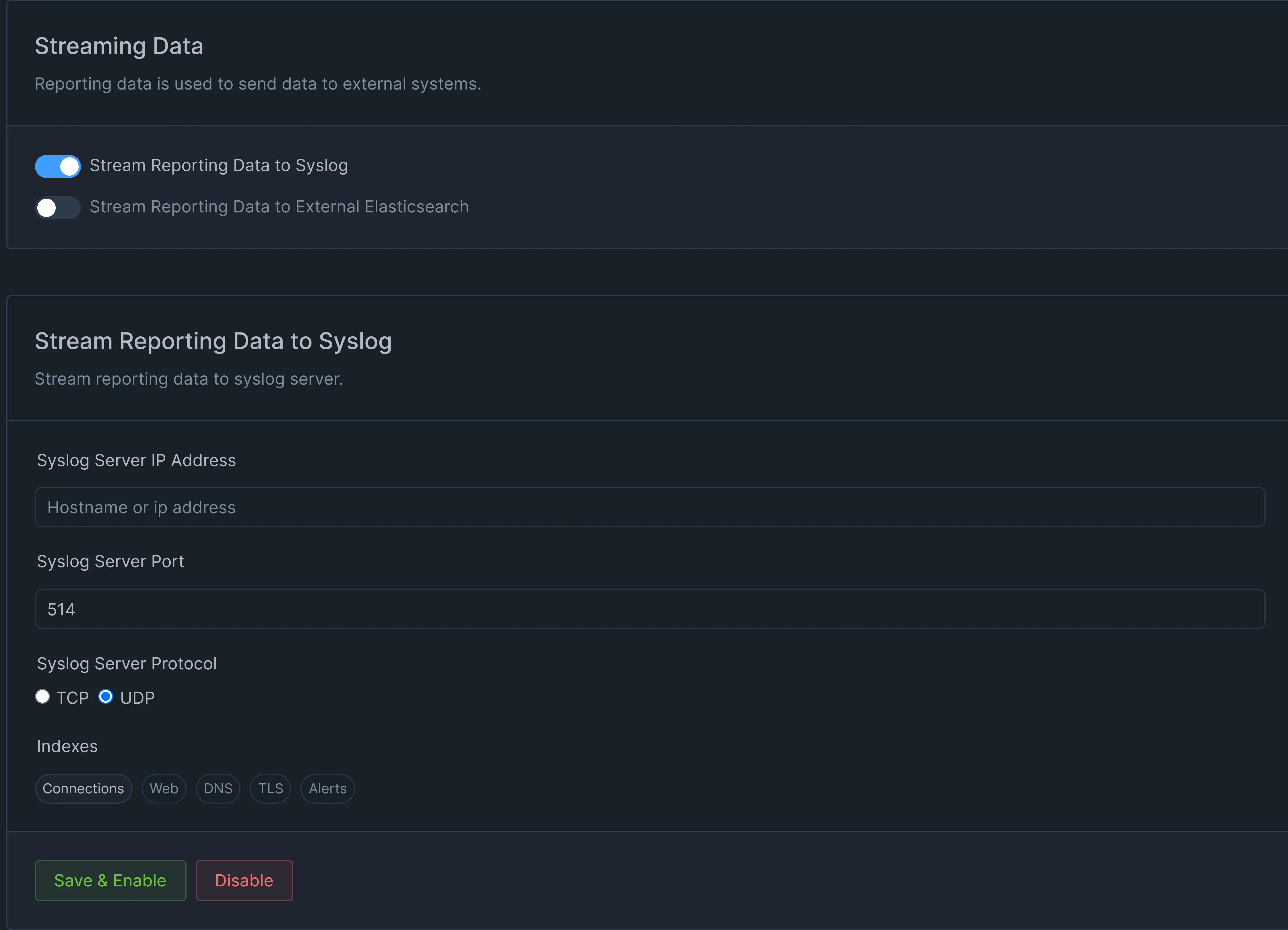
Figure 2. Enabling Stream Data to Syslog
Here is a video that will guide you through the Zenarmor® integration with Wazuh SIEM using Syslog:
Changing Syslog Streaming Configuration
After you enable streaming data to your syslog server, you can easily change its configuration by following the next steps:
- Go to Stream Reporting Data to Syslog on the Streaming Data page.
- Change the syslog streaming settings, such as IP address, port or protocol, depending on your server configuration.
- Click Update button to activate new settings.
Disabling Streaming Data to Syslog
You can easily stop to streaming Zenarmor reporting data to your Syslog server by following the next steps:
-
Go to Stream Reporting Data to Syslog on the Streaming Data page.
-
Click Disable button to stop streaming data.
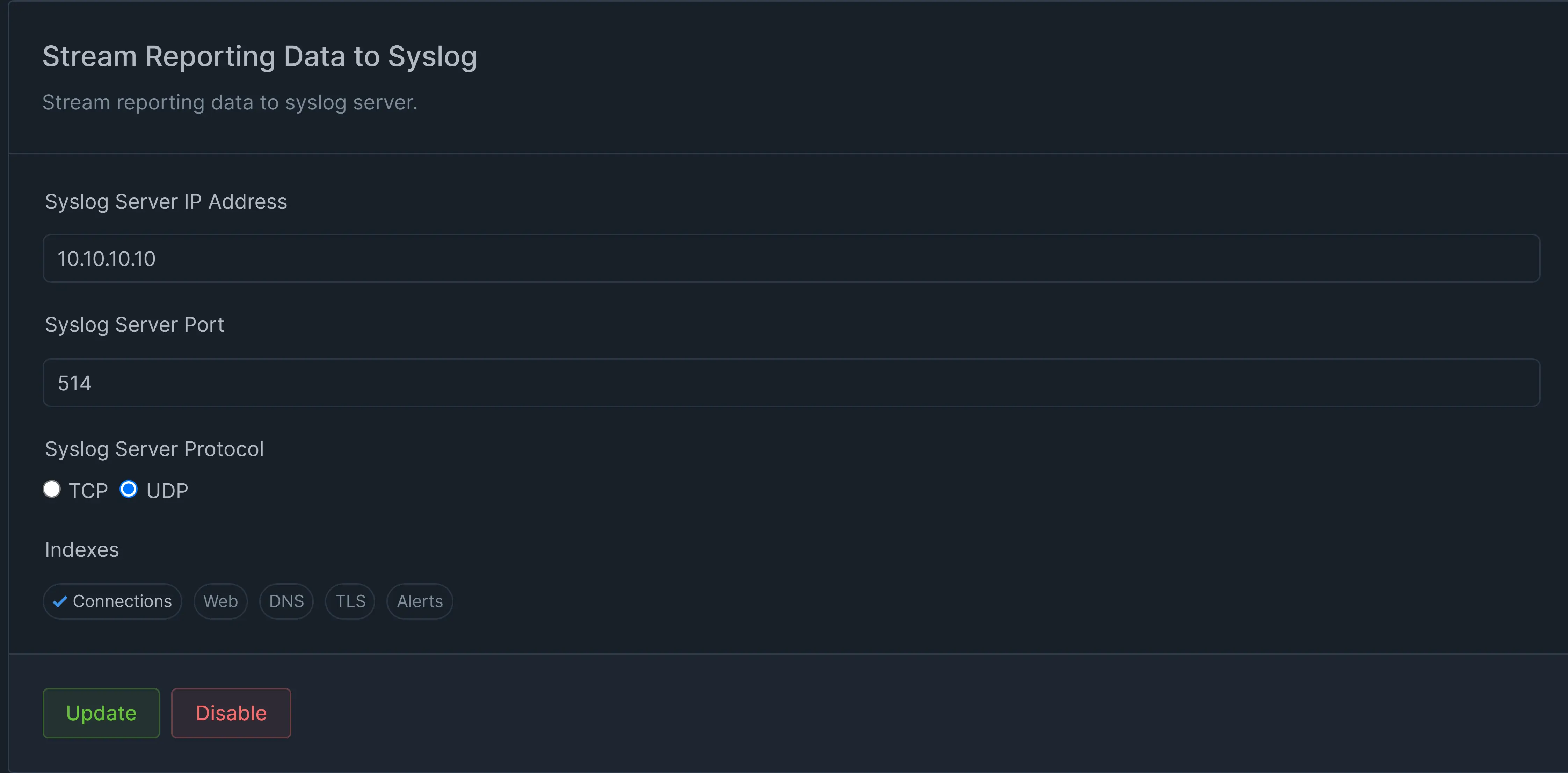
Figure 3. Updating/Disabling Syslog Streaming Configuration
Enabling Streaming Data to External Elasticsearch
You can easily start to streaming Zenarmor reporting data to your Syslog server by following the next steps:
-
Go to Streaming Data page on Zenconsole UI.
-
Click Stream Reporting Data to External Elasticsearch toggle bar. This will open Stream Reporting Data to External Elasticsearch configuration pane.
-
Fill in the External Elasticsearch URL field.
-
Set External Elasticsearch Username.
-
Set External Elasticsearch Password.
-
Click Save & Enable button to start streaming.
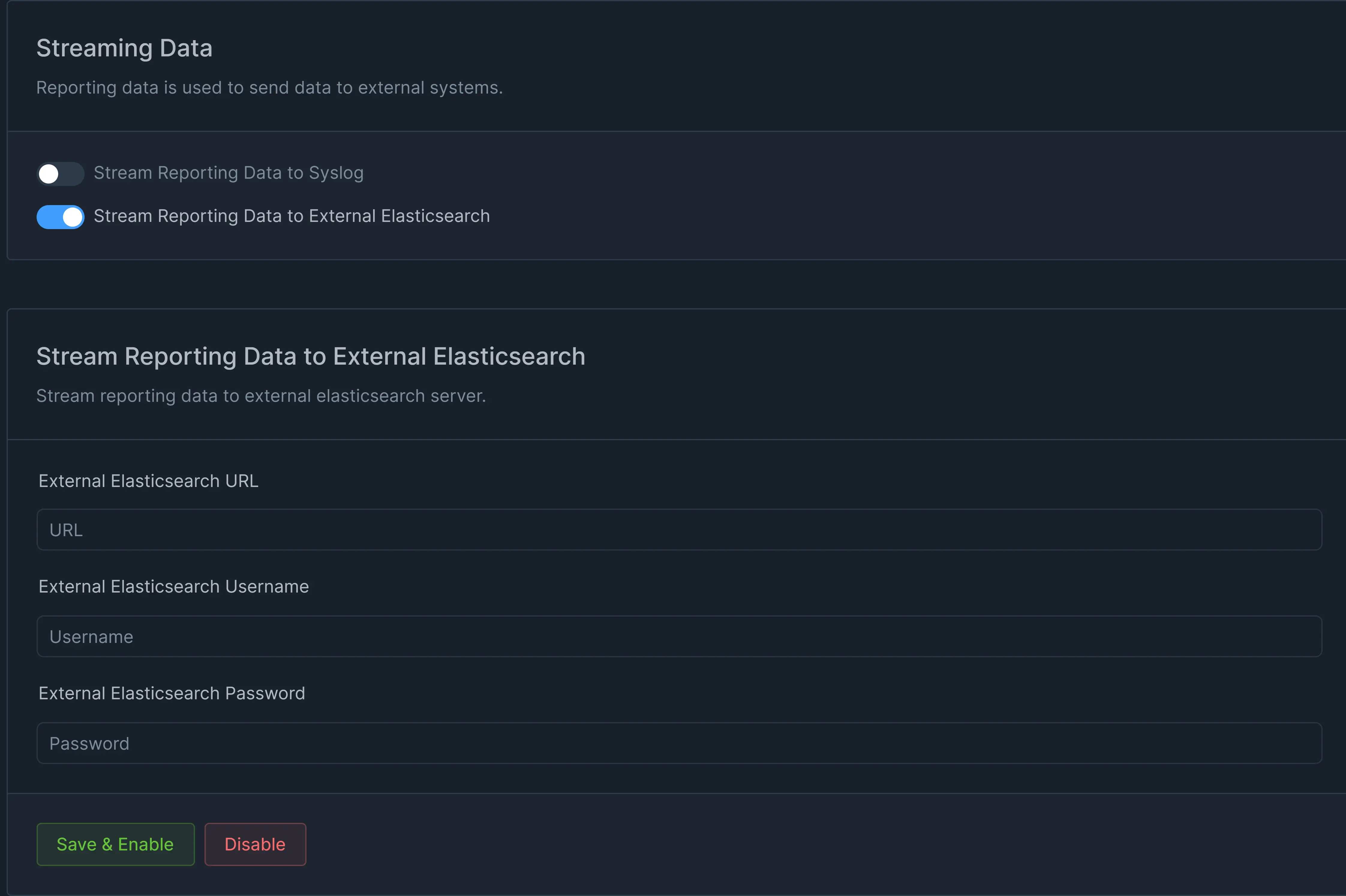
Figure 4. Enabling Stream Data to External Elasticsearch
Remote Elasticsearch database support is compatible with version 8.9.x to 8.17.1 of Elasticsearch.
Changing External Elasticsearch Streaming Configuration
After you enable streaming data to your elasticsearch server, you can easily change its configuration by following the next steps:
- Go to
Stream Reporting Data to External Elasticsearchon the Streaming Data page. - Change the elasticsearch streaming settings, such as URL, username or password, depending on your server configuration.
- Click Update button to activate new settings.
Disabling Streaming Data to External Elasticsearch
You can easily stop to streaming Zenarmor reporting data to your elasticsearch server by following the next steps:
- Go to
Stream Reporting Data to External Elasticsearchon the Streaming Data page. - Click Disable button to stop streaming data.