Managing Gateway Subscriptions on Zenconsole
Zenconsole allows you to view and manage the subscription associated with your Zenarmor gateway. From the Subscription page, you can check your current subscription status, activate or update a subscription using an activation key, manage your subscriptions, and remove an existing subscription from your gateway.
The Subscription page allows you to perform the following actions:
- View subscription status and details.
- Activate or update a subscription.
- Manage existing subscriptions or purchase a new subscription.
- Compare available subscription plans.
- Remove a subscription from the gateway.
To access the Subscription page, follow the steps below:
- Log in to your Zenconsole account.
- Navigate to Settings → Gateway Settings from the left-hand navigation menu.
- Select the gateway you want to manage.
- Click Subscription from the gateway settings menu.
The Subscription page displays the Subscription Status, Update Subscription, Manage Subscriptions, and Remove Subscription sections.

Figure 1. Zenconsole - Gateway Settings - Subscription
Viewing Subscription Status
The Subscription Status section displays information about the subscription currently associated with the selected gateway.
The available features depend on your subscription plan. Some advanced security features may not be available with the Free plan.
The Subscription Status section provides the following details:
- Purchased Subscription: Displays the subscription plan currently assigned to the gateway, such as Unified Secure or Unified Secure Plus.
- Activation Key: Displays the activation key associated with the gateway. Click Copy to copy the key.
- Next Renewal Date: Displays the subscription's next renewal date and time. The subscription renews automatically if automatic payment is enabled and valid payment information is available.
- Organization: Displays the organization associated with the gateway subscription.
- Detected Users: Displays the number of users detected by the gateway.
- Active Devices: Displays the number of active devices associated with the subscription.
For more information, please refer to Choosing the Right Subscription Plan.

Figure 2. Zenconsole - Settings - Subscription Status
Rechecking Subscription Status
You can manually check the gateway's subscription information to retrieve the latest subscription status.
To recheck the subscription status, follow the steps below:
- Navigate to Settings → Gateway Settings → [Gateway Name] → Subscription.
- Locate the Subscription Status section.
- Click the three-dot menu (⋯) in the upper-right corner.
- Select Check Again to initiate a subscription status check.
Subscription information can be manually rechecked using the Check Again option. The subscription checking interval is 5 minutes. If you have recently updated your subscription, you may need to wait before performing another check.
Activating or Updating a Subscription
If you have already purchased a Zenarmor subscription, you can activate or update it on your gateway using the Update Subscription section.
To activate or update a subscription, follow the steps below:
- Navigate to Settings → Gateway Settings → [Gateway Name] → Subscription.
- Locate the Update Subscription section.
- Enter or paste your purchased subscription's Activation Key into the provided field.
- Click Submit.
- Once the activation process is complete, verify the updated subscription details in the Subscription Status section.
If you enter an activation key that is already in use on another firewall, Zenconsole displays a warning indicating that the previous firewall registration will be removed. If you proceed, the subscription will be activated on the currently selected gateway.
Make sure you are using the correct activation key before proceeding.

Figure 3. Zenconsole - Update Subscription
Video Tutorial
The following video demonstrates how to activate a Zenarmor subscription using an activation key.
Managing Subscriptions
The Manage Subscriptions section provides quick access to subscription management, purchasing, and plan comparison options.
The following options are available:
- My Subscriptions: Opens the subscription management page, where you can view and manage your existing subscriptions.
- Purchase a New Subscription: Opens the subscription purchasing page, where you can select and purchase a new plan.
- Compare Zenarmor Plans: Opens the Zenarmor plans and pricing comparison page.
- Guide: Provides additional information to help you choose the most suitable subscription plan.

Figure 4. Zenconsole - Manage Subscriptions
Viewing Existing Subscriptions
To view your subscriptions, follow the steps below:
- Navigate to Settings → Gateway Settings → [Gateway Name] → Subscription.
- Locate the Manage Subscriptions section.
- Click My Subscriptions.
- Review the available subscription information on the subscription management page.
You can view your active and previous subscriptions, including details such as:
- Subscription plan
- Subscription status
- Billing cycle
- Renewal date
Managed Service Providers (MSPs) can also manage their customers' subscriptions through Zenconsole, including viewing, purchasing, and canceling subscriptions.
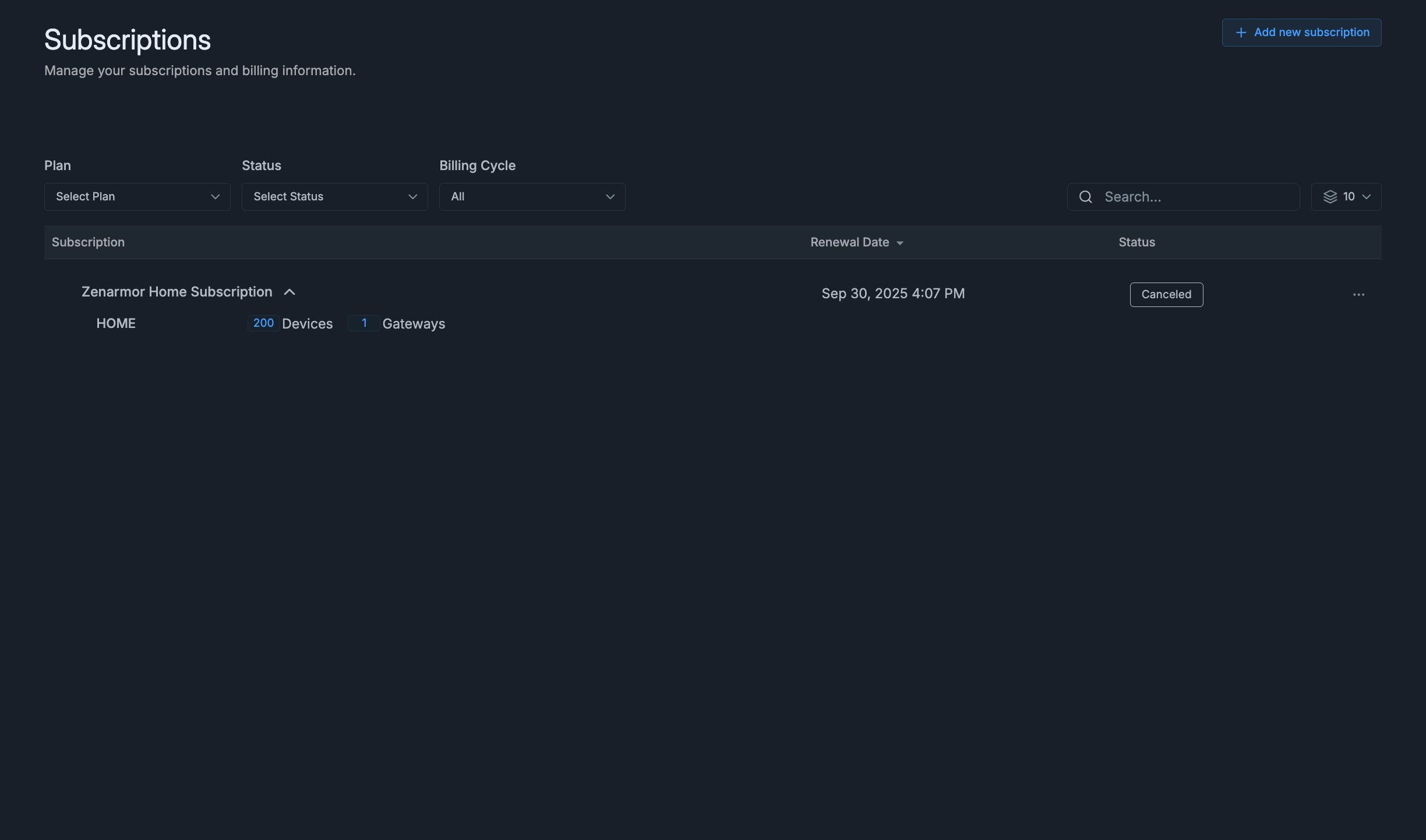
Figure 5. Zenconsole - My Subscriptions
Purchasing a New Subscription
To purchase a new Zenarmor subscription, follow the steps below:
-
Navigate to Settings → Gateway Settings → [Gateway Name] → Subscription.
-
Locate the Manage Subscriptions section.
-
Click Purchase a New Subscription.
-
On the subscription purchasing page, select your preferred subscription plan.
-
Choose a Monthly or Annual billing cycle.
-
Click Continue to proceed with the purchase.
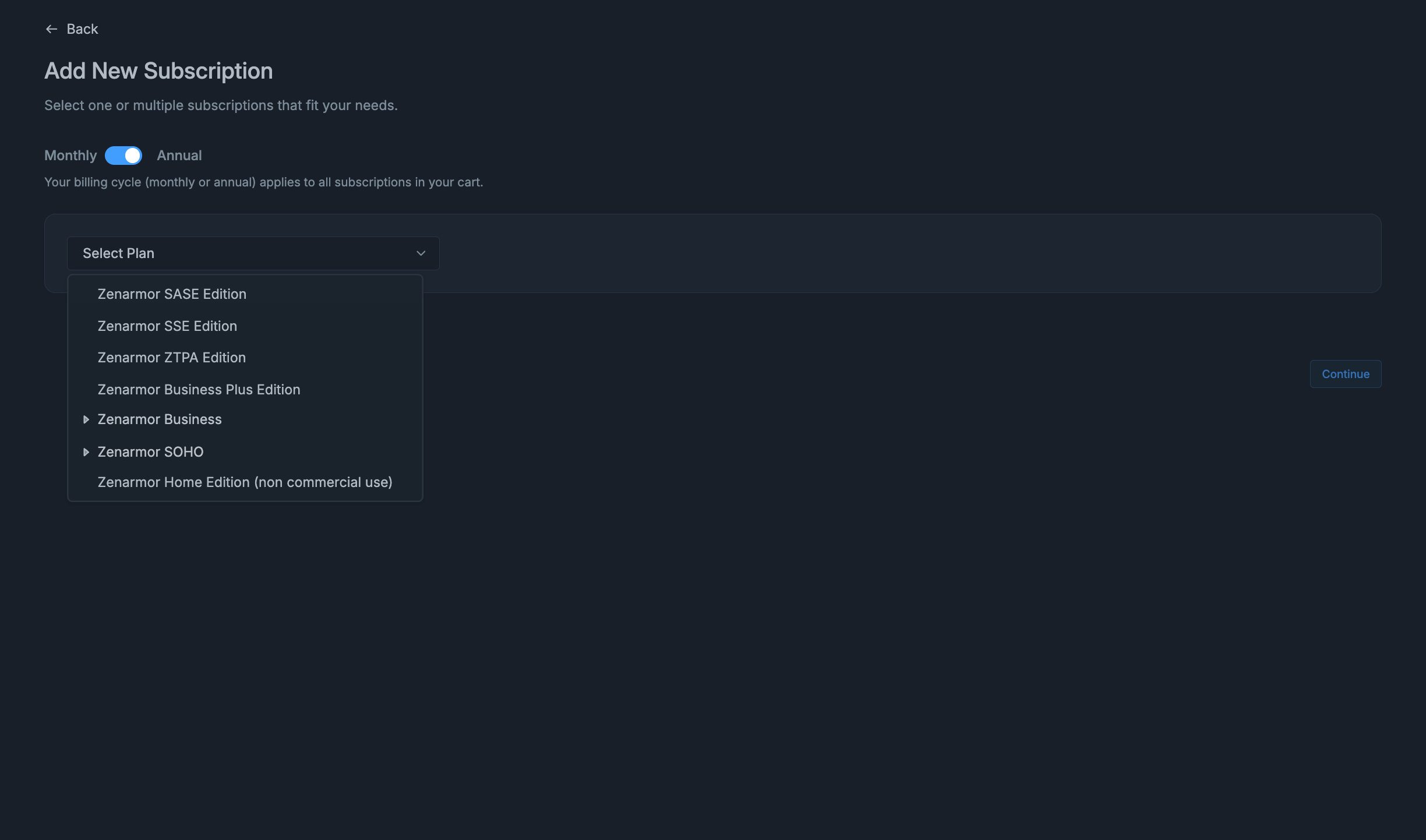
Figure 6. Zenconsole - Purchase Subscription
Comparing Subscription Plans
You can compare available subscription plans before purchasing or upgrading your subscription.
- Navigate to the Manage Subscriptions section.
- Click Compare Zenarmor Plans to review available plans and features.
- To learn more about choosing a suitable subscription, click Guide.
For more information, see Zenarmor Plans and Pricing.
Removing a Subscription
The Remove Subscription section allows you to remove the currently installed subscription activation key from the selected gateway.
To remove a subscription, follow the steps below:
-
Navigate to Settings → Gateway Settings → [Gateway Name] → Subscription.
-
Scroll down to the Remove Subscription section.
-
Click Remove.

Figure 7. Zenconsole - Remove Subscription
-
In the confirmation dialog, review the removal action.
-
Click Remove to confirm.

Figure 8. Zenconsole - Confirming Subscription Removal
The activation key is removed from the selected gateway.
Removing a subscription activation key from a gateway may affect the availability of subscription-dependent features.
This action removes the subscription association from the selected gateway. It does not cancel the purchased subscription or its billing arrangement. To manage or cancel a purchased subscription, use My Subscriptions.