Configuring DNS Enrichment for Reports on Zenconsole
Zenconsole provides DNS enrichment options to resolve IP addresses to hostnames and improve the readability of reporting data. DNS enrichment helps administrators identify devices and hosts more easily when reviewing network activity in reports.
The following DNS enrichment options are available:
- DNS Server IP Addresses: Configure DNS servers to perform reverse IP lookups.
- Real-time DNS Reverse Queries: Enable or disable real-time hostname resolution for local IP addresses.
- OPNsense Host Aliases: Use OPNsense host aliases to enrich reporting data when hostnames cannot be resolved through reverse DNS lookups.
Accessing DNS Enrichment Settings
You can access the DNS Enrichment settings by following these steps:
- Sign in to your Zenconsole account.
- Navigate to Settings from the left-hand sidebar.
- Under Gateway Settings, select the gateway you want to configure.
- Click DNS Enrichment from the gateway settings menu.
The DNS Enrichment for Reports page displays the configured DNS server IP addresses and the available DNS enrichment options.
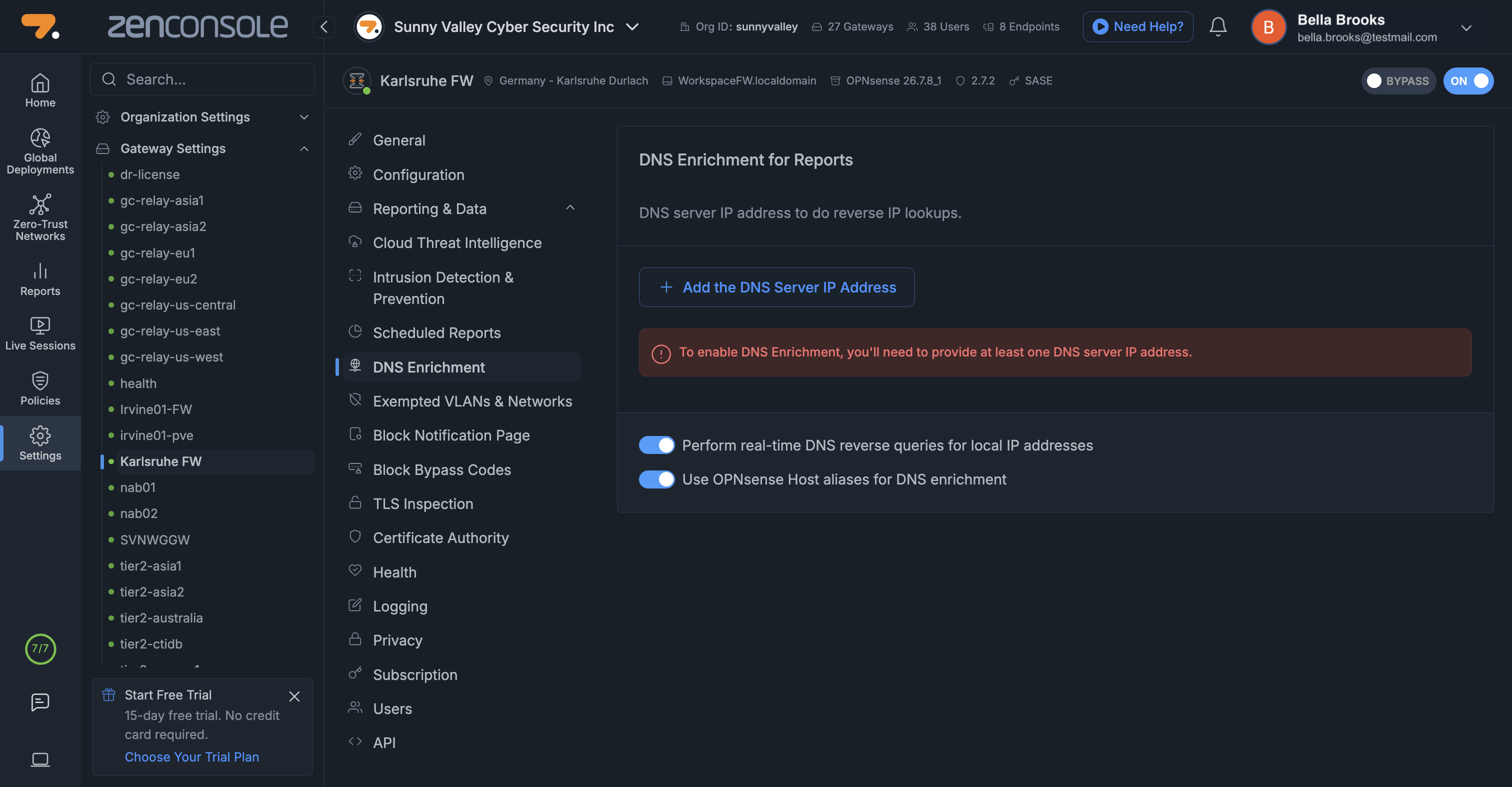
Figure 1. DNS Enrichment for Reports
Managing DNS Server IP Addresses
DNS server IP addresses are used to perform reverse IP lookups and resolve IP addresses to hostnames in reports. You can specify local or external DNS servers for hostname resolution.
Adding a DNS Server IP Address
You can add a DNS server IP address by following these steps:
-
Navigate to Settings → Gateway Settings → DNS Enrichment.
-
In the DNS Enrichment for Reports section, click + Add the DNS Server IP Address.
-
Enter the DNS server IP address to be used for reverse IP lookups.
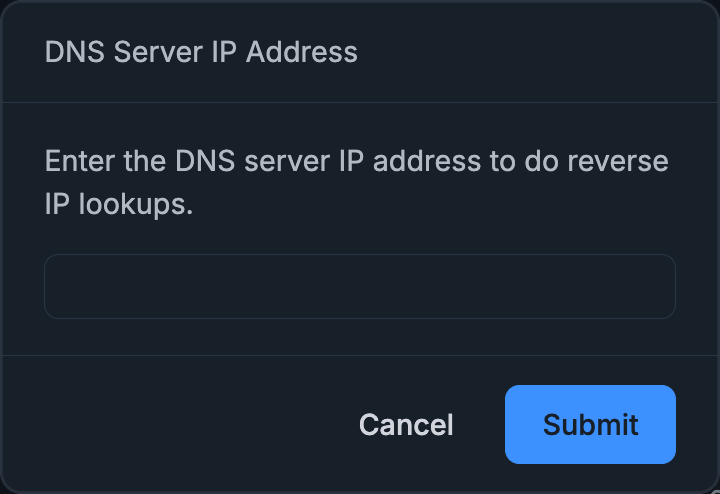
Figure 2. Adding a DNS Server IP Address
-
Complete the addition using the available confirmation option.
The configured DNS server IP address appears on the DNS Enrichment page.
Changing a DNS Server IP Address
You can modify an existing DNS server IP address by following these steps:
- Navigate to Settings → Gateway Settings → DNS Enrichment.
- Click the DNS server IP address you want to modify.
- In the DNS Server IP Address dialog, update the IP address.
- Click Submit to save the changes.
The updated DNS server IP address appears on the DNS Enrichment page.
Removing a DNS Server IP Address
You can remove a configured DNS server IP address by following these steps:
- Navigate to Settings → Gateway Settings → DNS Enrichment.
- Locate the DNS server IP address you want to remove.
- Click the X icon next to the IP address.
- Click Remove in the confirmation dialog to confirm the deletion.
The removed IP address will no longer appear in the configured DNS server list.

Figure 3. Removing a DNS Server IP Address
Enabling or Disabling Real-time DNS Reverse Queries
The Perform real-time DNS reverse queries for local IP addresses option allows Zenarmor to obtain hostnames associated with IP addresses on the local network.
Zenarmor uses multicast DNS (mDNS) and Link-Local Multicast Name Resolution (LLMNR) packets to retrieve hostname information from local network devices.
You can enable or disable this feature by following these steps:
- Navigate to Settings → Gateway Settings → DNS Enrichment.
- Locate the Perform real-time DNS reverse queries for local IP addresses option.
- Use the toggle to enable or disable real-time DNS reverse queries.
When enabled, Zenarmor retrieves hostname information for local IP addresses to enrich reporting data.

Figure 4. Enabling or Disabling Real-time DNS Reverse Queries
Enabling or Disabling OPNsense Host Aliases for DNS Enrichment
The Use OPNsense Host aliases for DNS enrichment option allows Zenarmor to use configured OPNsense host aliases to identify devices in reports.
When this feature is enabled, Zenarmor uses the alias name in reports if a hostname cannot be obtained through a reverse DNS lookup.
You can enable or disable this feature by following these steps:
- Navigate to Settings → Gateway Settings → DNS Enrichment.
- Locate the Use OPNsense Host aliases for DNS enrichment option.
- Use the toggle to enable or disable OPNsense host aliases for DNS enrichment.
When enabled, OPNsense host aliases provide additional hostname information for reporting purposes when reverse DNS resolution is unsuccessful.