Configuring Privacy Settings on Zenconsole
Zenarmor provides granular control over data sharing and privacy-related settings for your gateways. Using the Privacy page on Zenconsole, you can manage data sharing preferences, software update checks, cloud-based services, IP address anonymization, and data enrichment settings.
This guide explains how to configure and manage privacy settings for your Zenarmor gateway.
Accessing Privacy Settings
To access the privacy settings for your gateway, follow the steps below:
-
Log in to Zenconsole.
-
Navigate to Settings on the left-hand sidebar.
-
Expand Gateway Settings and select the gateway you want to configure.
-
Click Privacy.,

Figure 1. Privacy Settings on Zenconsole
The Privacy page provides the following configuration sections:
-
General
-
Updates and Health
-
Cloud Threat Intelligence
-
Zenconsole Cloud Management
-
Reporting and Data
tipClick the question mark (?) icon next to each section heading to view detailed information about the available settings and their data-sharing behavior.
General
The General section allows you to review mandatory heartbeat and license checks and manage the sharing of health and system utilization statistics.
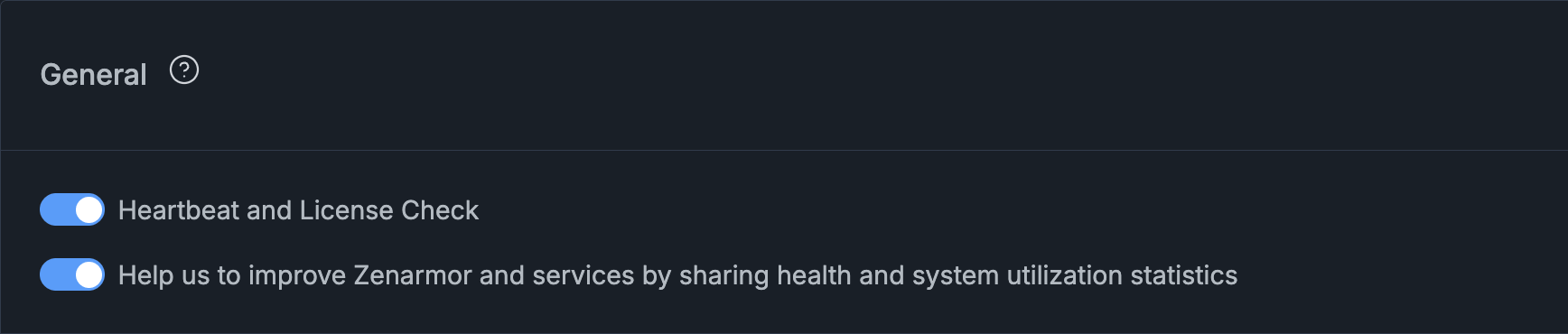
Figure 2. General Privacy Settings
Heartbeat and License Check
Zenarmor uses a heartbeat mechanism to support software operation, health monitoring, and license validation.
Each Zenarmor installation sends heartbeat information 3–8 times a day. The information shared through heartbeat messages includes:
- Unique node identifier
- IP address
- Zenarmor software versions
- Platform version
- Relevant Zenarmor configuration parameters
- Subscription plan
- License key
- Number of devices in use
When combined with other information, this data may be considered Personally Identifiable Information (PII) and is protected under the Zenarmor Privacy Policy.
Zenarmor processes network traffic as necessary to provide its security services. For further information about traffic data processing, collection, and storage, refer to the Privacy Policy.
Heartbeat and License Check is required for Zenarmor to operate correctly and cannot be disabled.
Sharing Health and System Utilization Statistics
Zenarmor allows you to share health and system utilization statistics with the Zenarmor team to help improve the product and its services.
To enable or disable statistics sharing, toggle the Help us to improve Zenarmor and services by sharing health and system utilization statistics option.
Disabling this option stops the optional sharing of these statistics without disabling the mandatory heartbeat and license checks.
Updates and Health
The Updates and Health section allows you to manage software and application database update checks and configure core file generation for troubleshooting purposes.

Figure 3. Updates and Health Settings
Check for Zenarmor Software Updates
When enabled, Zenarmor periodically checks whether a new software version is available for download and installation.
This process shares the IP address of the Zenarmor installation.
To enable or disable software update checks, toggle the Check for Zenarmor Software Updates option.
Check for Zenarmor Application Database
When enabled, Zenarmor periodically checks for new versions of the application database.
This process shares the IP address of the Zenarmor installation.
To enable or disable application database update checks, toggle the Check for Zenarmor Application Database option.
It is highly recommended to keep both software and application database update checks enabled.
Enable Core File Generation
Zenarmor can generate core files in the event of a software crash. These files help the Zenarmor team investigate and troubleshoot software issues.
To enable or disable core file generation, toggle the Enable 'Core' file generation option.
Core file generation may temporarily interrupt network connectivity on Zenarmor-protected interfaces. Enable this option only when troubleshooting a software crash with the Zenarmor Support team.
Cloud Threat Intelligence
Zenarmor uses its Cloud Threat Intelligence system to provide cloud-assisted security and web categorization capabilities.
Communication between Zenarmor and the Cloud Threat Intelligence system is encrypted. As described in the Privacy settings, cloud queries include information such as:
- Anonymized node identifier of the Zenarmor installation
- Hostname and IP address of the remote endpoint
Anonymized information is aggregated to help identify emerging threats, including zero-day attack campaigns. Raw query data is deleted after processing, as described in the interface.
For further details about the information processed by this service, refer to the Privacy Policy.
To enable or disable this feature, toggle the Enable Cloud Threat Intelligence option.

Figure 4. Cloud Threat Intelligence Privacy Settings
It is highly recommended to keep Cloud Threat Intelligence enabled to benefit from Zenarmor's cloud-assisted security and web categorization capabilities.
For more information, refer to Configuring Cloud Threat Intelligence on Zenconsole.
Zenconsole Cloud Management
The Zenconsole Cloud Management section provides privacy-related settings for centralized gateway management and infrastructure error reporting.

Figure 5. Zenconsole Cloud Management Privacy Settings
Enable Cloud-based Management
Zenconsole provides centralized management of your Zenarmor deployments through its cloud-based infrastructure.
When cloud-based management is enabled, your Zenarmor instance communicates with Zenconsole using encrypted connections.
Communication between Zenconsole and your gateway occurs primarily on demand. When the gateway is not actively being managed, communication is limited to essential messages, such as connectivity checks.
For gateways using local reporting storage, reporting data is retained locally and transmitted to Zenconsole when requested for management or reporting purposes.
The Enable Cloud-based Management option indicates whether cloud-based management is enabled for your gateway.
Report Infrastructure Errors
Zenarmor can report potential infrastructure-related issues to the Zenarmor Cloud Operations Center to help maintain the availability and reliability of its cloud services.
To enable or disable infrastructure error reporting, toggle the Report Infrastructure Errors option.
Reporting and Data
The Reporting and Data section allows you to configure IP address anonymization and control DNS and user enrichment for your gateway.

Figure 6. Reporting and Data Privacy Settings
Anonymize Local IP Addresses
Zenarmor allows you to anonymize local IP addresses to protect the privacy of devices within your network.
When enabled, actual local IP addresses are masked and replaced with anonymized IP addresses in reporting views, including Live Sessions and Activity Explorer.
To enable or disable local IP address anonymization, toggle the Anonymize Local IP addresses option.
Anonymize Remote IP Addresses
Zenarmor allows you to anonymize remote IP addresses associated with network connections.
When enabled, actual remote IP addresses are masked and replaced with anonymized IP addresses in reporting views, including Live Sessions and Activity Explorer.
To enable or disable remote IP address anonymization, toggle the Anonymize Remote IP addresses option.
Enable DNS Enrichment
Zenarmor analyzes DNS traffic to associate IP addresses with their corresponding DNS names. DNS enrichment helps improve traffic identification and filtering effectiveness.
To enable or disable DNS enrichment, toggle the Enable DNS Enrichment option.
It is recommended to keep DNS enrichment enabled for improved filtering effectiveness.
For more information, refer to Configuring DNS for Reports on Zenconsole.
Enable User Enrichment
When Zenarmor is integrated with an identity database, such as Microsoft Active Directory, it can associate IP addresses with corresponding users.
User enrichment provides additional user information in reporting data. Depending on your organization's privacy policies or regulatory requirements, you may need to disable this feature to prevent user information from being included in reports.
To enable or disable user enrichment, toggle the Enable User Enrichment option.
Data anonymization does not change how Zenarmor collects data. These configuration settings affect how data is stored in your environment, including the reporting database.
Privacy Policy and Terms of Service
The Privacy page also provides direct access to the following resources:
For privacy-related inquiries, contact [email protected].
The information shared through individual privacy settings may change over time. It is recommended to review the Privacy page periodically.