Internet Gateway Networks on Zenconsole
The Internet Gateway Networks eature defines how mobile endpoint devices securely access the Internet through designated Internet Access Gateways within a secure network managed by Zenarmor.
Mobile Android and iOS devices running the Zenarmor Endpoint Application can join the organization’s network. The endpoint application enables device enrollment and establishes connectivity within the defined Internet Gateway Network.
Once enrolled, each mobile endpoint is assigned an IP address within the defined network range. Internet-bound traffic from these devices is routed through the configured Internet Access Gateway.

Figure 1. Internet Gateway Networks Page
When an Internet Access Networkis configured:
-
Mobile endpoints connect to the defined Internet Gateway Network
-
Devices receive an IP address from the configured network range
-
All internet-bound traffic is routed through the selected gateway
-
Security inspection and policy enforcement can be applied centrally by Zenarmor
-
Outbound connections can be monitored and controlled according to defined access policies
The Internet Access Gateway functions as the secure internet egress point for enrolled mobile devices. This architecture allows traffic originating from remote or roaming endpoints to be routed through organizational gateways where centralized inspection, filtering, and policy enforcement are applied.
As a result, mobile endpoints connecting from external, remote, or untrusted environments can maintain consistent security controls, visibility, and internet access policies regardless of their physical location.
By routing traffic through a centrally managed gateway, Zenarmor enables you to maintain control over outbound connections, apply consistent policies across mobile endpoints, and monitor internet usage within the overlay network.
Creating Internet Gateway Networks
You may easily create an Internet Gateway Networks by following these steps.
-
Login Zenconsole.
-
Select the organization that you want to manage.
-
Navigate to Zero-Trust Networks → Internet Gateway Networks from the left navigation panel
-
Click + Create Internet Gateway Network to launch the setup wizard.

Figure 2. Creating Internet Gateway Network
-
Configure the network in the Network Configuration step:
- Enter a descriptive Network Name for the Zero Trust Network.
- Configure the Network Slug if customization is required.
- Enter the private Address Range (IPv4) in CIDR format that will be used within the Internet Gateway Network.
- Ensure that the This is an Internet Gateway Network option is enabled.
warningPlease be aware that assigning a private IP address (such as RFC1918) may trigger DNS rebinding protection mechanisms in browsers and network security systems. This can lead to access being blocked or resolution failures occurring. Public DNS servers should not resolve to private IP ranges (for example, 10.0.0.0/8, 172.16.0.0/12, 192.168.0.0/16).
If you need to use non-public addresses, there are two recommended approaches:
-
Utilize CGNAT address space (100.64.0.0/10) instead of RFC1918 ranges. This can help avoid DNS rebinding protection issues while still allowing the use of non-public IPs.
-
Set up your own private DNS server for internal resolution.

Figure 3. Create Internet Gateway Network Wizard - Network Configuration
-
After completing the network configuration, click Next to continue.
-
In the Add Internet Gateway step:
- Click the Select Gateway drop-down menu.
- Select the gateway instance that will provide secure internet access for connected endpoints.
- If you do not want to assign a gateway during this step, click Skip Optional Steps and Create.

Figure 4. Create Internet Gateway Network Wizard - Add Internet Gateway
noteInternet gateways must already be deployed and connected before they can be selected in this step. You can deploy gateways from the Global Deployments section.
-
After selecting the gateway, click Next to continue.
-
In the Add Mobile Endpoints step:
-
Click Add Mobile Endpoint to add Android or iOS devices directly.
-
Optionally, use:
- Add User to associate users with the network
- Add Group to associate groups with the network
noteMobile endpoints must first be enrolled through the Zenarmor Endpoint application before they can securely connect through the Internet Gateway Network.
If users or groups are not yet configured, they can be created and managed from the related menus under:
- Settings → Users
- Settings → Groups
-
-
After completing the endpoint assignments, click Complete & Sync Now.

Figure 5. Create Internet Gateway Network Wizard - Add Mobile Endpoints
Once the setup is completed, connected endpoints will securely route internet-bound traffic through the selected Zenarmor gateway where centralized inspection and policy enforcement are applied.
Only OPNsense gateways are supported as Internet Exit Gateways.
To configure an Internet Access Gateway, an active OPNsense gateway must be connected to your organization. Other gateway types cannot be selected for Internet exit routing.
You may create multiple Internet Gateway Networks within your organization. You'll find a complete list of all your private networks conveniently displayed on the left side of the Internet Gateway Networks page, making management effortless and efficient.
Managing Peers
Zenconsole allows you to manage mobile endpoint devices connected to an Internet Gateway Network.
These devices are listed as peers and can be added, removed, viewed, or updated as needed.
Adding Mobile Endpoint Peers
You may add enrolled mobile endpoint devices to an Internet Gateway Network by following the steps below.
-
Navigate to the Zero-Trust Networks → Internet Gateway Networks page of an organization on Zenconsole.
-
Select the Internet Gateway Network to which you want to add a mobile endpoint.
-
Locate the Peers section on the network configuration page.
-
Click the + Add Mobile Endpoint button. This will display a list of available enrolled mobile devices in your organization. Use the Search field to quickly find a specific device if needed.
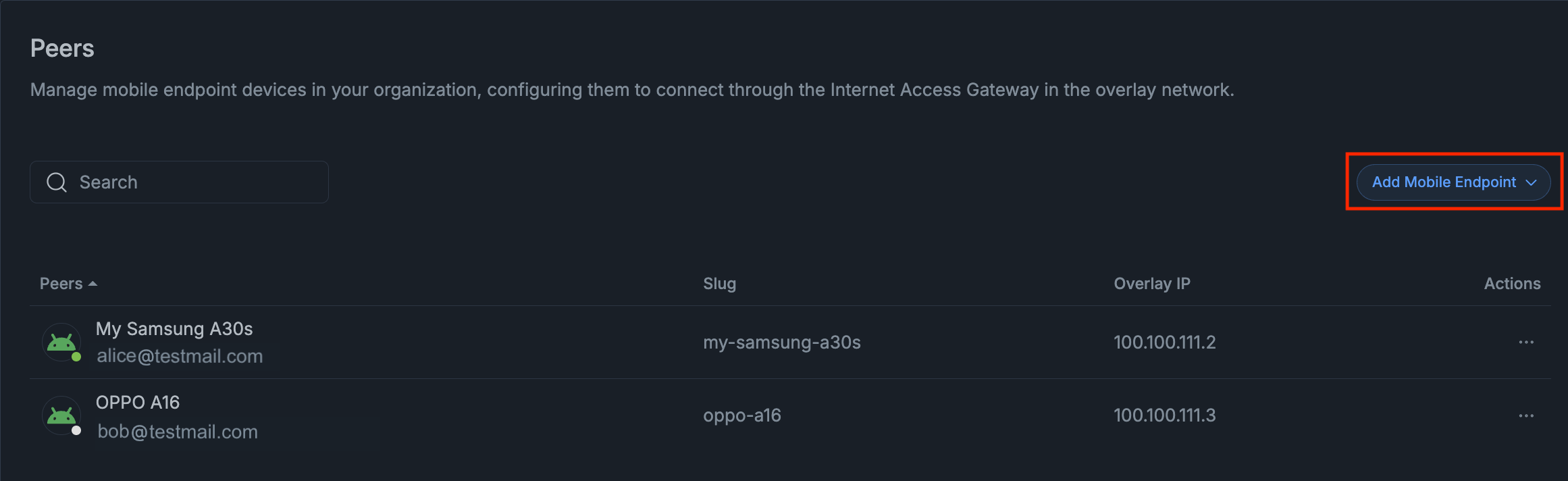
Figure 6. Adding Mobile Endpoint
-
Select the mobile endpoint you want to add.
-
You may add as many multiple endpoints as you want. All added mobile endpoints will appear in the Peers pane. A message box will appear at the bottom right of the page for configuration updates.
-
After adding peers, a configuration update notification will appear. Click Sync Now to apply configuration changes immediately across all connected instances.

Figure 7. Configuration Updated - Sync Now Popup
Removing Peers
Mobile endpoint peers can be removed from an Internet Gateway Network at any time.
-
Navigate to the Zero-Trust Networks → Internet Gateway Networks page of an organization on Zenconsole.
-
Select the relevant Internet Gateway Network from which you want to remove a peer.
-
Locate the peer that you want to remove. You may use the search toolbox to find a peer.
-
Click the Actions menu with the 3-dot icon. This will open a drop-down menu.
-
Click the Remove button to delete the selected peer from the Internet Gateway Network. This will display a confirmation notification window.

Figure 8. Removing Mobile Endpoint
-
Click Remove to approve the peer deletion. A message box will appear at the bottom right of the page for configuration updates.

Figure 9. Removing Mobile Endpoint Warning
-
After removing peers, a configuration update notification will appear. Click Sync Now to apply configuration changes immediately across all connected instances.
Figure 10. Configuration Updated - Sync Now
After removal, the device will no longer be part of the Internet Gateway network, and its traffic will not be routed through the configured Internet Access Gateway.
Viewing Peers
All mobile endpoints added to an Internet Gateway Network can be viewed from the Peers section of the network configuration page.

Figure 11. Viewing Peers
The following details are displayed for each peer:
-
Device name
-
Slug
-
Overlay IP address
-
Actions menu
Peers can be sorted by device name or overlay IP address by clicking the relevant column header.
You can sort peers by their names and IP addresses. Click on the Peers or Overlay IP column to arrange the peers in either ascending or descending order.
Updating Peer Settings
You can modify certain settings for peers within the network.
To update peer settings by following the steps below.
-
Navigate to the Zero-Trust Networks → Internet Gateway Networks page of an organization on Zenconsole.
-
Select the relevant network from which you want to update peer settings.
-
Locate the peer in the Peers list.
-
Click the Actions menu with the 3-dot icon. This will open a drop-down menu.
-
Click Settings. From the settings panel, you can modify the assigned overlay IP address.

Figure 12. Peer Settings

Figure 13. Peer Settings - 2
-
After making changes, a configuration update notification will appear. Click Sync Now to apply configuration changes immediately across all connected instances.
Searching Peers
The search field within the Peers section allows you to quickly locate a device.

Figure 14. Searching Mobile Endpoint
You can search by following the next steps.
-
Device name
-
User email
-
Overlay IP address
The peers list will automatically filter based on the search input.
Managing User and Group Access
The Membership section allows you to control which users and groups are authorized to use this Internet Gateway Network.
By assigning users or groups to the network, you define which enrolled mobile endpoint devices are permitted to route internet traffic through the configured Internet Access Gateway.

Figure 15. Membership
When a user or group is added:
-
All enrolled mobile endpoint devices associated with that user are automatically authorized
-
Any future devices enrolled by that user are included automatically
This approach ensures consistent internet access routing control without requiring manual device assignment.
Adding Users to an Internet Gateway Network
To add users to an Internet Gateway network, you may follow the next steps.
-
Navigate to the Zero-Trust Networks → Internet Gateway Networks page of an organization on Zenconsole.
-
Select the Internet Gateway Network to which you want to add a user.
-
Scroll down the page to reach the Membership section and locate the Users pane.
-
Click the + Add User button. This will display available users in your organization. You may use the Search tool to find a specific user quickly.

Figure 16. Adding User
-
Select the user you want to add.
-
Repeat these steps to add additional users. All added users are displayed in the Users pane.

Figure 17. Users List
Removing Users from an Internet Gateway Network
To remove a user from an Internet Gateway network, follow the steps below.
-
Navigate to the Zero-Trust Networks → Internet Gateway Networks page of an organization on Zenconsole.
-
Select the Internet Gateway Network from which you want to remove a user.
-
In the Users pane under Membership, locate the user you want to remove.
-
Click the
Xicon next to the user. This will display a confirmation notification window. -
Click Remove to delete the user from the Zero-Trust network.

Figure 18. Remove User from Zero-Trust Network
Adding Groups
To add groups to an Internet Gateway network, you may follow the next steps.
-
Navigate to the Zero-Trust Networks → Internet Gateway Networks page of an organization on Zenconsole.
-
Select the Internet Gateway Network from which you want to add a group.
-
Scroll down the page to reach the Membership section and locate the Groups pane.
-
Click the + Add Group button. This will display available groups in your organization. You may use the Search tool to find a specific group quickly.
-
Select the group you want to add.

Figure 19. Add Group
-
You may add as many groups as you want. All added groups will appear in the Groups pane.
Removing Groups
To remove a group from an Internet Gateway network, follow the steps below.
-
Navigate to the Zero-Trust Networks → Internet Gateway Networks page of an organization on Zenconsole.
-
Select the Internet Gateway Network from which you want to delete a group.
-
In the Groups pane under Membership, locate the group you want to remove.
-
Click the
Xicon next to the group. This will display a confirmation notification window. -
Click Remove to delete the group from the Zero-Trust network.

Figure 20. Delete Group from the Zero Trust Network
Deleting Internet Gateway Networks
To remove an Internet Gateway Network from your organization, follow the steps below.
-
Navigate to the Zero-Trust Networks → Internet Gateway Networks page of an organization on Zenconsole.
-
Select the private network that you want to delete.
-
Scroll down to the Delete Network pane.
-
Click the Delete Network button. This will display a confirmation dialog box.

Figure 21. Delete Network
-
Type the network name to approve the removal of the private network.

Figure 22. Delete Network Confirmation
-
Click the Delete Network button. A message box will appear at the bottom right of the page for configuration updates.
-
After deleting the network, a configuration update notification will appear. Click Sync Now to apply configuration changes immediately across all connected instances.