Gateway Reports Overview
Gateway Reports provides detailed visibility into the network activity, security events, and traffic processed by an individual gateway. It enables administrators to monitor traffic patterns, investigate security incidents, analyze application usage, and review DNS, web, and TLS activity from a single gateway perspective.
Unlike Centralized Reports, which aggregate data across the entire organization, Gateway Reports focuses exclusively on traffic observed by the selected gateway. This allows administrators to perform gateway-level analysis, troubleshoot issues, and investigate activity within a specific deployment.
To access Gateway Reports, follow the steps below:
- Login Zenconsole.
- Select the organization you want to manage.
- Navigate to Reports from the left sidebar.
- Expand Gateway Reports.
- Select the gateway you want to investigate.
The selected gateway's reporting dashboard opens and displays traffic and security data collected from that gateway.

Figure 1. Accessing Gateway Reports
Understanding the Gateway Reports Interface
The Gateway Reports page displays reporting data collected from a specific gateway.
At the top of the page, a gateway information bar provides quick visibility into the selected gateway, including information such as:
- Gateway name
- Geographic location
- Hostname
- Operating system
- Zenarmor version
- Deployment mode
- Packet Engine status
- Bypass status
This information helps administrators verify the operational state of the selected gateway before analyzing report data.
The Packet Engine status indicates whether traffic inspection is currently active on the gateway. The Bypass status indicates whether network traffic is being processed normally or bypassing inspection. These indicators provide immediate visibility into the gateway's current operating state and can help administrators identify configuration or troubleshooting issues before investigating report data.
Below the gateway information bar, report views provide visibility into traffic, security events, blocked connections, web activity, DNS activity, and TLS communications observed by the gateway.

Figure 2. Gateway Information Bar
Report Views
Gateway Reports organizes information into multiple report views, each focusing on a different aspect of network activity.
Available report views include:
- Connections
- Threats
- Blocks
- Web
- DNS
- TLS
You can switch between report views using the tabs displayed at the top of the page.

Figure 3. Gateway Report Views
Connections Report View
The Connections report view provides visibility into network communications processed by the selected gateway.
Administrators can analyze traffic patterns, application activity, devices, hosts, and connection statistics observed by the gateway.
The dashboard presents connection activity through interactive charts and summary widgets, helping administrators identify communication trends and investigate network behavior.

Figure 4. Connections Report View
Threats Report View
The Threats report view provides visibility into security threats detected by the selected gateway.
This view helps administrators identify malicious activity, investigate affected assets, monitor threat trends, and gain insight into the overall security posture of the monitored network.
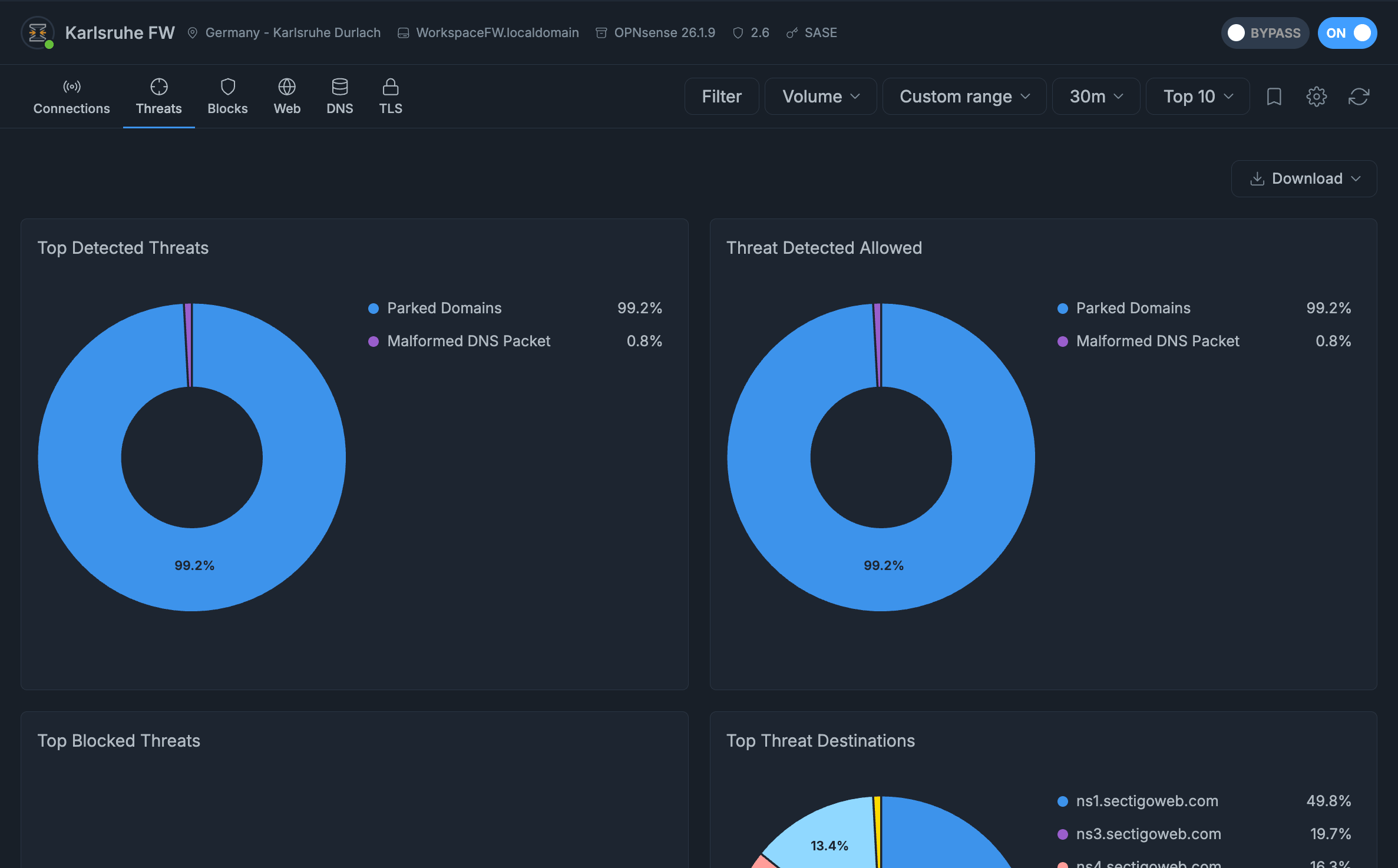
Figure 5. Threats Report View
Blocks Report View
The Blocks report view displays traffic that has been blocked by security policies and enforcement mechanisms.
Administrators can review blocked activity and investigate why specific traffic, applications, users, or destinations were denied.
This information helps validate policy effectiveness and supports security investigations.

Figure 6. Blocks Report View
Web Report View
The Web report view provides insight into web browsing activity observed by the selected gateway.
Administrators can analyze websites, categories, URLs, and browsing trends to better understand how web resources are being used across the network.

Figure 7. Web Report View
DNS Report View
The DNS report view focuses on DNS requests and responses processed by the gateway.
This view helps administrators investigate domain resolution activity, identify unusual DNS behavior, and support security analysis involving domain-based communications.
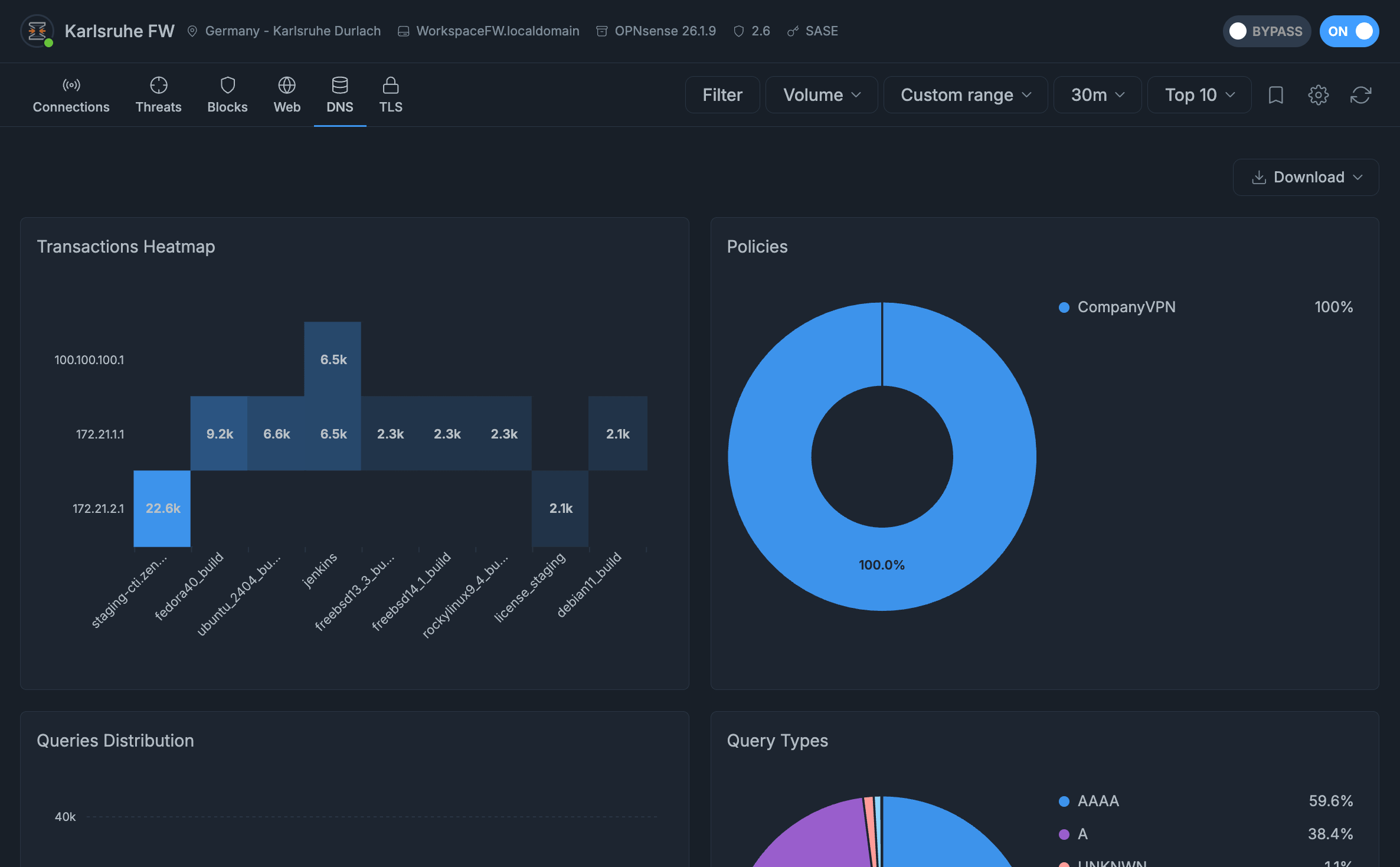
Figure 8. DNS Report View
TLS Report View
The TLS report view provides visibility into encrypted communications traversing the gateway.
Administrators can analyze TLS sessions, destination servers, and encrypted traffic patterns to better understand secure network activity and support threat investigations involving encrypted traffic.
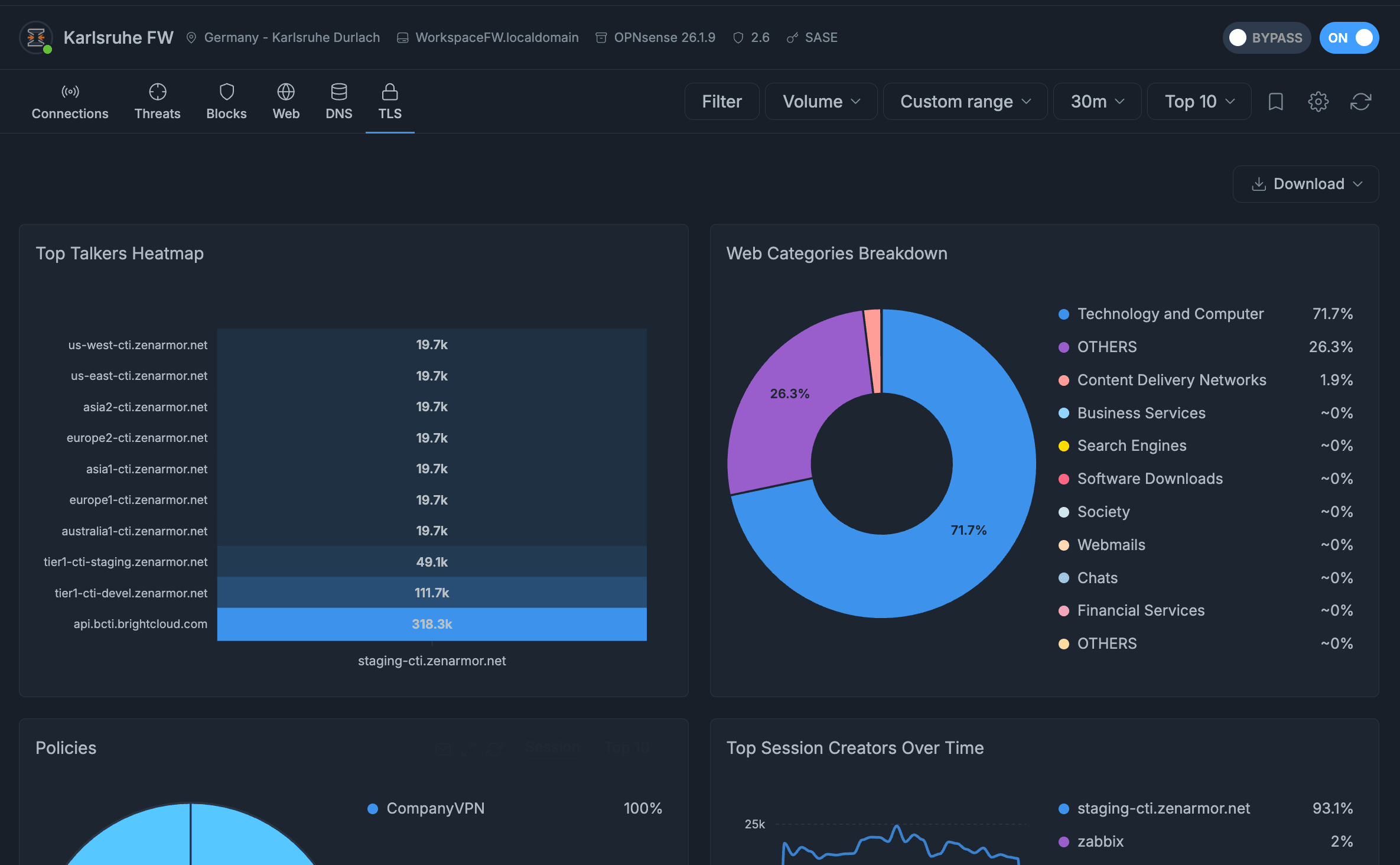
Figure 9. TLS Report View
Gateway Reports provides visibility into network activity and security events at the gateway level.
To learn how to customize report views, configure reporting options, apply filters, manage saved filters, work with interactive charts, and export reports, see Configuring Gateway Reports page.