Centralized Reports Overview
Centralized Reports provides organization-wide visibility into network activity, security events, application usage, and Zero-Trust Network traffic. By aggregating data from managed gateways and endpoints, it enables administrators to monitor, analyze, and investigate activity across the entire organization from a single location.
The Centralized Reports dashboard presents information through interactive charts, summary widgets, and report views that help administrators identify trends, monitor user and device activity, investigate security events, and gain deeper insight into network behavior.
To access Centralized Reports, follow the steps below:
-
Login Zenconsole.
-
Select the organization you want to manage.
-
Click Reports in the left sidebar.
-
Select Centralized Reports.
The Centralized Reports page opens and displays organization-wide reporting data collected from managed gateways and endpoints.

Figure 1. Accessing Centralized Reports
Understanding the Centralized Reports Interface
The Centralized Reports page is organized into multiple report views, each focusing on a different aspect of network and security activity.
Available report views include:
- Connections
- Threats
- Blocks
- Web
- DNS
- TLS
- Zero-Trust Networks
You can switch between report views using the tabs displayed at the top of the page.

Figure 2. Centralized Reports Dashboard
Each report view contains a collection of charts and summary widgets designed to provide both high-level visibility and detailed operational insights. Administrators can use these views to analyze traffic patterns, identify security events, investigate user activity, and monitor network usage across the organization.
Connections Report View
The Connections report view provides visibility into network communications processed by the selected gateway.
Administrators can use this view to analyze traffic patterns, application activity, active users and devices, local and remote hosts, and overall connection behavior observed by the gateway.
The dashboard presents connection activity through interactive charts and summary widgets that help identify:
- Application and application category usage
- Active users and devices
- Local and remote hosts
- Communication patterns
- Traffic distribution
- Connection trends over time
This view can be used to investigate network behavior, identify active assets, analyze application usage, and better understand how traffic flows through the monitored environment.

Figure 3 Connections Report View
Threats Report View
The Threats report view provides visibility into detected security events and threat activity across the organization.
The dashboard highlights threat trends, affected users and devices, threat destinations, and overall security posture.
Administrators can use this view to investigate security incidents, identify affected assets, and monitor threat activity over time.

Figure 4. Threats Report View
Blocks Report View
The Blocks report view provides visibility into traffic that has been blocked by security policies and enforcement mechanisms.
The dashboard presents blocked activity through interactive charts and summary widgets that help administrators identify affected users, devices, applications, destinations, and policy actions.
Administrators can use this view to investigate denied traffic, analyze blocking trends, review the reasons behind blocked activity, and validate policy effectiveness across the monitored environment.
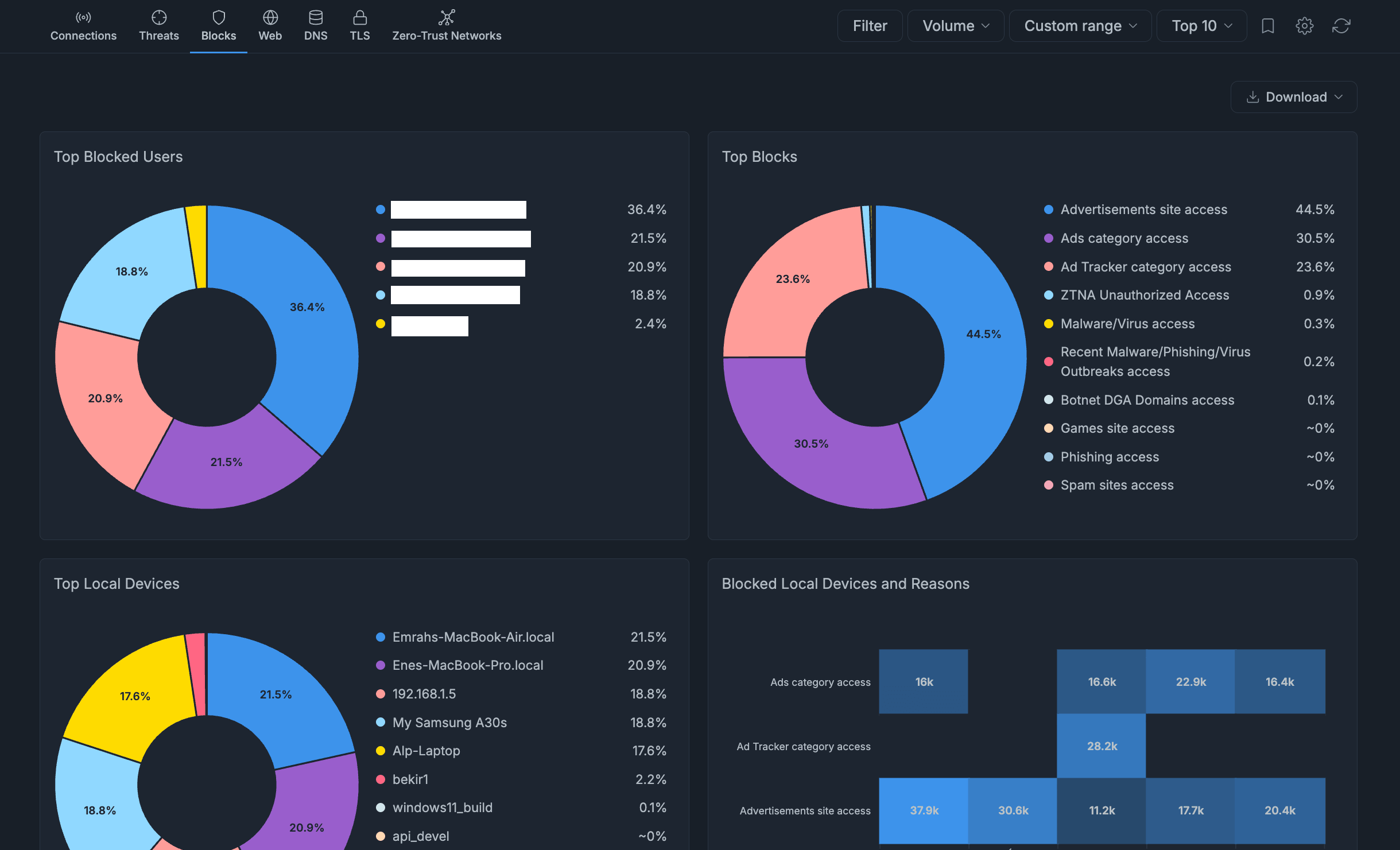
Figure 5. Blocks Report View
Web Report View
The Web report view provides visibility into web activity across the organization.
Administrators can analyze browsing behavior, web categories, websites, URLs, and HTTP activity to better understand how network resources are being used.
The dashboard helps identify usage trends, popular web destinations, and category-based traffic patterns.

Figure 6. Web Report View
DNS Report View
The DNS report view provides insight into DNS query activity generated by users and devices.
This view helps administrators monitor domain resolution requests, identify unusual DNS behavior, and investigate network activity related to specific domains.
The dashboard presents DNS activity through visualizations and summary widgets that support operational monitoring and security investigations.

Figure 7. DNS Report View
TLS Report View
The TLS report view focuses on encrypted traffic within the organization.
Administrators can analyze TLS sessions, encrypted communications, destination servers, and related traffic patterns to better understand secure network activity.
This view helps provide visibility into encrypted connections while supporting traffic analysis and security monitoring.

Figure 8. TLS Report View
Zero-Trust Networks Report View
The Zero-Trust Networks report view provides visibility into Zero-Trust Network activity across the organization.
Administrators can monitor access patterns, connected users and devices, and communication occurring through Zero-Trust Network environments.
This view helps security teams understand network access behavior and monitor Zero-Trust Network usage across the organization.

Figure 9. Zero-Trust Networks Report View
Once you become familiar with the available report views, you can customize how report data is displayed using reporting metrics, filters, bookmarks, chart controls, and export options. For more information, see Configuring Centralized Reports.